
Choose your data
One screen
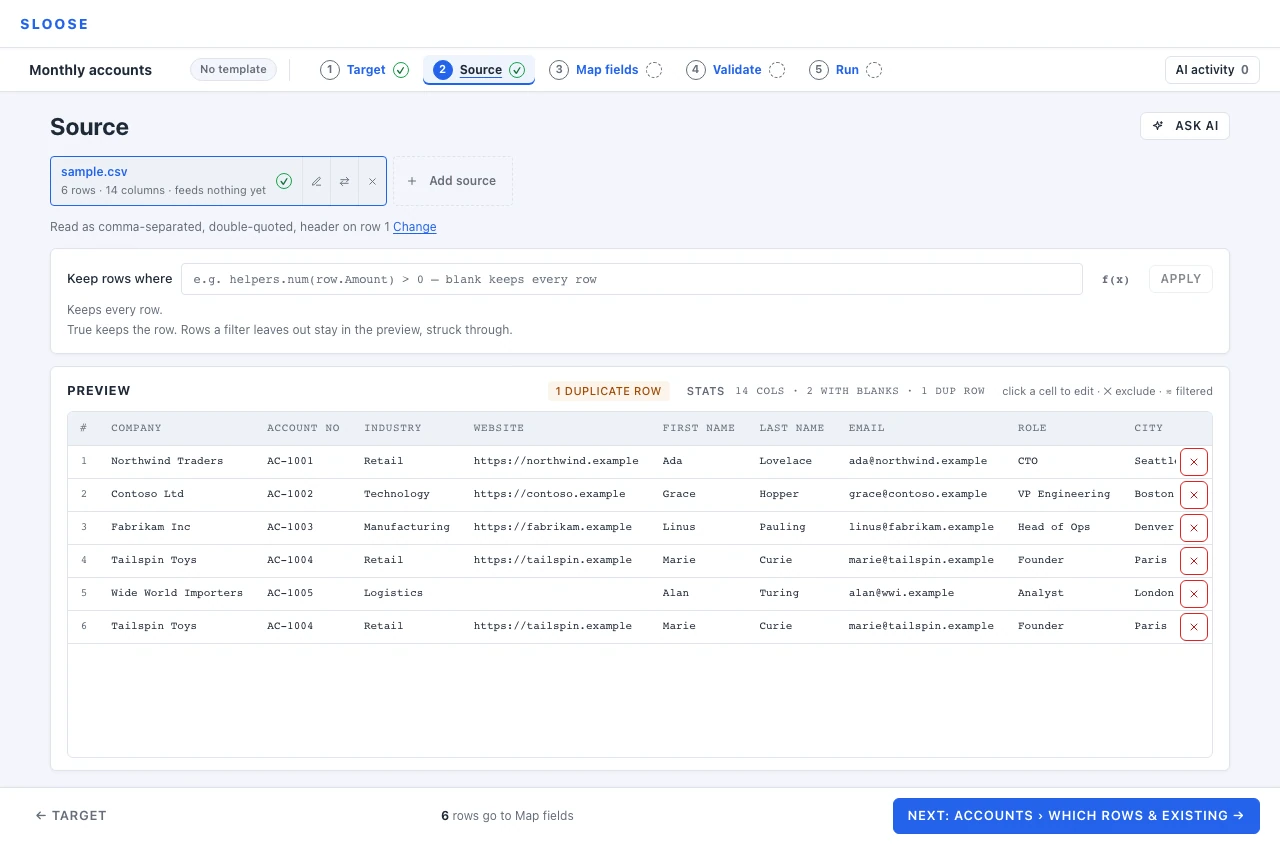
Section titled “One screen”Source is one screen, about the file whose tab is active: the row of files, the row filter, and the rows. Until there is data it asks where the data comes from instead.
Every file has a tab in the row at the top — one file as well as several — with its name, its size and the modules it feeds (feeds Accounts), and three buttons: the pencil renames it, the swap puts different data where it is, and ✕ takes it out of the import, once you have said yes. + Add source ends the row. Under it, a sentence says how the file on screen is read — Read as comma-separated, double-quoted, header on row 1, or Read from “Accounts”, header on row 3 — with Change beside it, which opens the delimiter settings or the worksheet picker. The swap’s word depends on where the data came from:
| Loaded from | Replace it with |
|---|---|
| a CSV or Excel file | Replace file |
| pasted text | Edit text — the box holding the text |
| a generated sample | Replace — opens on the file tab, since real data is usually what comes next |
Each of those reopens the choice of where the data comes from — on that kind’s own tab with the data in hand, or for a sample on the file tab — and nothing in the import changes until something loads over it. It works from any file’s tab, not only the one on screen: that file becomes the one you are working on. A generated sample has no reading to change, so the line under its tab says what it was made from instead, with Change beside it: that reopens Generate a sample holding the description, with chips that add a change to it (Make it bigger — 50 rows), and the new sample is shown first and takes this one’s place when you press Use this data. Stats — unique values, blanks and samples per column — belong to the grid and sit on the Preview card below, whatever the data came from.
The sentence under a file’s tab, and its Change, are about the file as it was loaded in this browser tab. The import keeps the rows Sloose read, not the file or the text they came from, so when the import is opened again — after a reload, or by a colleague — the rows are there with no such sentence, and pasted text’s swap is Paste new text, an empty box. To read a file another way then, load it again: through its swap to put it in place, or through + Add source for another sheet of the same workbook.
Ask AI
Section titled “Ask AI”Ask AI, at the section’s top right, is one conversation about the file on screen. It keeps what was asked here and what came of it, so a question asked later picks up from the last one — you asked “Leave out the rows that don’t belong” — you used it — and the assistant is told the same, so a follow-up such as that, but keep the Vendor rows is answered from where it left off. If your organisation’s AI data setting has since been made stricter, earlier answers made from more of your rows than it now shares are not sent again: the conversation starts afresh.
The conversation is kept with the import, so it is there when the import is opened again — by you, or by anyone else in your organisation who can open it — and each question says who asked it. It goes with the file when you remove the file from the import. A question about a file you are still adding is not kept: the file is not part of the import yet. Nor is one asked while a change of yours is still being saved — its answer stays on the page. See Your data and the model for what is kept, and for how long.
What an answer proposes lands where the work is, as a guess: a row filter in the filter’s own box, with the rows it would leave out struck through in the preview; a reshape, a re-read or a new sample on a strip above the rows. Each says what it would do, and waits for Use this or No thanks. Nothing changes until you use one. A row filter that would keep none of the file’s rows says so instead, with Use this turned off: the model sees only some of the rows, so change it in the box, or turn it down. When an answer that proposed something arrives, the conversation folds into a line under the button — what changed, Undo and Show — so the guess it made is not under it. Undo turns down everything that answer proposed, while none of it has been used; once you have used part of it, turn the rest down where it waits.
It offers a few questions to start with — Is anything wrong with this file? and Leave out the rows that don’t belong — or ask your own. A generated sample is asked about as its rows, the way pasted text is; to remake the sample itself, use Change on the line under its tab, where the chips are changes to it (Make it bigger — 50 rows). An answer that proposes nothing you could use here costs no credits. That means words alone, or only what this file cannot take, such as a separator for a worksheet or a new header row for a sheet you are looking at. The answer says why it offers none of it.
Loading a file
Section titled “Loading a file”With nothing loaded, Source asks where the data comes from: CSV or Excel file (drop it on the zone, or Browse…), Paste text (a box with its delimiter settings and Load data), or Generate a sample — describe the data you want, or what you are importing, and Sloose makes a small file that fits the modules this import is for (it uses AI credits, and is offered only where the AI can be asked). On an empty import the sample loads the moment it arrives, as a dropped file does; over data you already have it is shown first, and Use this data is what puts it in place. Files and folders takes files, a folder or a zip and makes a sheet with one row for each file, for a field that attaches files to records (Files on records). Only the kinds this organisation can use are offered; a connection as a source, such as a CRM, appears here the day it is available. Either way the data needs a header row — its values become the column names you map from. For pasted text and CSVs that is the first row; in a workbook, Sloose finds it even when a title sits above it.
The rows are stored with the import. Sloose keeps them as it read them, as text and after any reshape you used — each worksheet you add as a file of its own — with the corrections you make beside them, in Cloudflare’s Oceania region, so the import can be picked up again: until your plan’s history window has passed since the import was last changed or run (and for up to 30 days longer after a change of plan), or until the import is deleted. Your CRM’s records are not stored. What passes through our servers on its way to and from your CRM is each record being written; when you match on a field, the value looked up for it and the records that came back; and, while you set up a lookup field, the records you search for to pick one from. What a run did with each record — its outcome, its ID in your CRM, the CRM’s reason when it refused one, and the values it was matched and linked by — is kept with the run’s history: see Results.
Delimiters
Section titled “Delimiters”Auto-detected — Work it out — with what it found shown so you can overrule it. Comma, tab, semicolon, pipe and space are offered explicitly, which covers the exports that usually get this wrong — a European CSV using semicolons, a tab-separated dump with commas inside the values.
If the preview looks like one column, the delimiter is wrong.
Accented letters
Section titled “Accented letters”A CSV that is UTF-8 is read as UTF-8, and one that opens with a byte-order mark as the mark says. Any other is read as one of two older encodings, whichever its bytes look like: Windows-1252, which Excel on Windows writes as CSV (Comma delimited) for Western European languages, or Mac Roman, which Excel on a Mac writes. That is a guess, and the panel says so: how the file was read, a value from it, and the other readings to choose if a name looks wrong. Those two are the only ones it falls back to: a file in another encoding — Excel on a Windows set up for Japanese or Russian writes one — is read as one of them and comes out wrong, so save it as CSV UTF-8 first. If a letter was lost all the same, Validate warns of any value that would be sent with a replacement character (�) in it, and names the rows: try another reading here if one is offered; otherwise the file itself holds the character, so correct or exclude those rows, or run as it is.
The encoding is a setting. Beside Delimiter there is an Encoding choice for any file: the reading it was detected as is marked (detected), and choosing another reads the same bytes again. A choice is kept with the file’s reading, so a reopened import shows it, and it is carried to the next file you put in its place (below), where it applies. A file that is valid UTF-8 and might be Mac Roman by coincidence (a curly mark before an accented capital, as in L’Écuyer, is the usual case) is read as UTF-8 and said to be a guess, with the same value under each reading, so you can see which is right. Choosing the reading it was detected as again is a choice, and is no longer called a guess.
A file a person chose an encoding for is read that way each time it is opened. A file that reads cleanly as UTF-8 is read as UTF-8 each time, including the next month’s file: choose again if its symbols are wrong.
One case cannot be detected. A Mac Roman file whose only non-ASCII text is a pair of symbols such as
≈£ in a budget column is byte for byte a valid UTF-8 file with an ordinary Latin accent
(ţ), as every European UTF-8 file is, so nothing can tell them apart from the bytes, and it is read
as UTF-8 with no note. If a value reads wrongly like that, choose Mac Roman under Encoding, or
save the file as CSV UTF-8 first.
A reading you chose is carried to the next file. When you replace a file with the next month’s and you had chosen how the last one was read (Windows-1252 or Mac Roman), the new file is read the same way, and the note says so. It is carried only to a file whose bytes are not valid UTF-8: a file that opens with a byte-order mark, a UTF-16 file and a file that is valid UTF-8 are read as they are, and UTF-8 itself is never carried. Adding another file (+ Add source) takes no other file’s choice.
Excel workbooks
Section titled “Excel workbooks”Upload an .xlsx and every worksheet in it is read. They are listed with their sizes.
A workbook of one sheet is loaded as it arrives — on a new import, and added with + Add source as a file of its own — because there is nothing to choose between. Through Replace file it waits for Use, since that puts it over a file you have. A workbook of several loads nothing until you choose: every sheet has a tick box, nothing is ticked, and the button under them says what it will do — Add 2 sheets. Select all and Clear change the ticks and nothing else, and the line above the sheets says how many are in the import (2 of 5 sheets in this import).
Click a sheet to look at it. Nothing changes in the import while you look — the rows appear below as they would be read, with the header row you can move. A sheet that cannot be imported can still be looked at, and says why beside its rows rather than instead of them: seeing what is in a worksheet is usually the answer to why it will not load.
Each ticked sheet is its own file in the import, with its own columns, its own cleaning and
its own mapping. A workbook of ten sheets where two matter costs two ticks. They are named
workbook · sheet, so three sheets of one file are three distinctly-named files with no thought,
and any of them can be renamed. A sheet that cannot be read fails on its own and is named: ticking
a notes tab by accident does not throw away the sheets that were the point.
Changing which sheets are in is the same ticks, from the file’s Change: tick another sheet and the button says Add 1 sheet; untick one and it says Remove 1 sheet, and asks first, because a sheet taken out takes its cleaning and mapping with it. Swapping one sheet for another is both at once — Add 1, remove 1. The ticks need the workbook loaded in this browser tab: an import opened again holds the sheets’ rows, not the workbook (above), so there you add a sheet by loading the workbook again with + Add source, and take one out with the ✕ on its tab. See More than one file below.
Replace file is different: it puts another file where this one is, keeping everything set up for it, so a workbook uploaded that way asks which one sheet takes its place — Use this sheet.
Ask AI about the sheet you are looking at. Ask AI answers about whatever is on the screen, so with a sheet open in the picker it answers about that sheet — not about the file the import is currently holding. A reshape it proposes is remembered against that sheet and applied when you commit it — Add on the adding path, Use this sheet on the replacing one — so asking about one worksheet never changes another, and nothing happens to the import until you do. If you decide against the sheet, the reshape goes with it.
Two kinds of answer are not remembered, and say so when you accept them. An answer that moves the header row is declined whole, and points you at the Header row box above the sheet: that box is the one place that decides where the rows start, and you set it yourself — move it, look at what that gives, and ask again about what is left. A row filter needs a file to filter, so add the sheet first and then ask for one; the reshape half of the same answer is still taken.
Move the header row first if it is wrong. The assistant is shown the sheet from its header row down, which is what the row numbers in its answers count — so where the rows start is the header-row control’s job, and the assistant is for everything after that.
A title above the header
Section titled “A title above the header”Exported reports often start with a title, a date, or the name of whoever ran them, and the real column names are on the second or third row. Sloose looks for that and starts from the header row it finds — the panel shows which row it picked, numbered the way Excel numbers rows, and you can type a different one.
It skips a leading row only when that row holds at most half as many values as the widest row near the top (blank rows above are always skipped), so a title goes and a header that happens to have one blank column name is left alone. If the column names look wrong — one of them is the report’s title, or the first record has become the header — set the header row yourself. It is per sheet: switching tabs looks at that tab afresh.
A few things about cell values are worth knowing, because they are the ones that go wrong elsewhere:
- Text keeps its leading zeros.
00123arrives as00123, not123. - Numbers arrive unformatted. A cell displayed as
$1,234,567.50arrives as1234567.5, because that is what a currency field accepts. Add the formatting back with a formula if you want it in a text field. The exception is a whole number whose format adds a plus sign, digits, brackets or dashes — a phone number shown as+61 …— which arrives as shown, and the note on how the sheet was read names the column. - Dates arrive as
2026-10-15. Excel stores a date as a number, and the way it is displayed is ambiguous —05/01/2027is January in Sydney and May in New York. The ISO form never is. A cell that also holds a time arrives as a full timestamp,2026-10-15T09:30:00.000Z. - Percentages arrive as fractions. Excel stores
15%as0.15. Mapping one to a percent field is flagged on the Validate step, with a one-click fix. - Formulas give you their last saved value, never a recalculation. Excel saves one on every save, so this is almost always the number you last saw. A workbook produced by a script rather than by Excel may have saved no value at all, and then the cell really is empty — Stats will show the column as blank.
.xls (the pre-2007 format) and .ods cannot be read. Open either one and save it as .xlsx;
Sloose says so by name rather than calling the file unsupported.
More than one file
Section titled “More than one file”One import can take several files. An accounts file and a contacts file, or two worksheets of one workbook: each keeps its own columns, its own cleaning and its own mapping, and every one of them is imported in a single run.
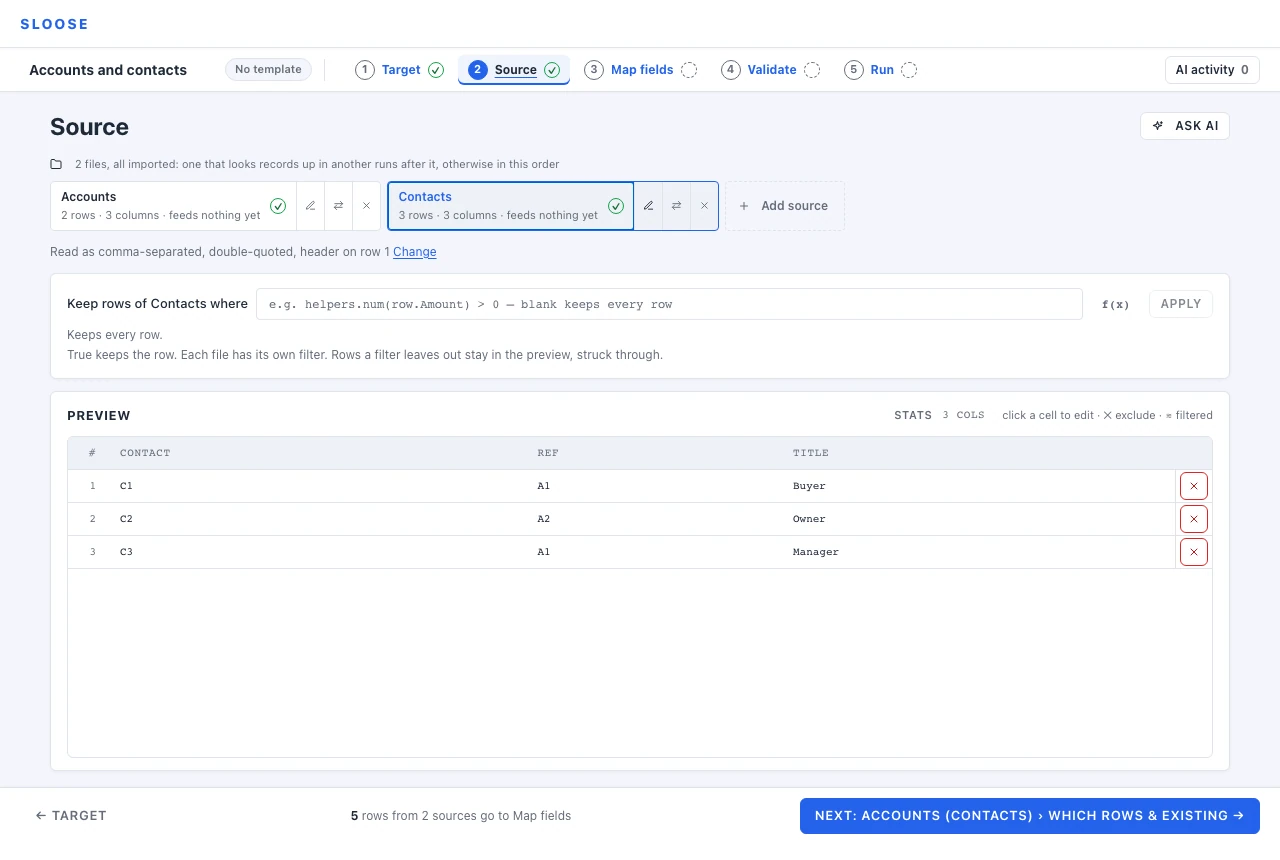
Adding is its own button. The swap on a file’s tab — Replace file, Edit text or Replace, whichever its kind says — puts different data where that file is, because correcting a file you chose by mistake is much the commoner reason to load twice. + Add source, at the end of the row of files, is what puts another one in the import: it opens the same choice of where the data comes from, for a file the import does not hold yet. A CSV, or a workbook of one sheet, is added as it arrives; a workbook of several waits for the sheets you tick, and pasted text for Load data. Either way the file you were working on is untouched. Two extracts pasted one after the other is the quickest way to build an import of two files, and it works whatever the file on screen is.
Click a file’s tab to work on it; the whole step follows — the preview, the filter, the stats. Map fields, value translations included, shows the same files, so you always know which one you are answering for, and you can move between them without coming back here. The ✕ on a file takes it out of the import, with its rows, its cleaning and its mapping, and there is no undo — so it always asks first. Taking out the last one also starts the import again from the beginning, and the question says so.
Naming a file
Section titled “Naming a file”Each file is named for where its rows came from — the file name, and the worksheet within it when there is one — and you can call it something else. Click the pencil on its tab, then press Enter (clicking away does the same; Escape leaves it alone). The pencil is deliberately separate from the tab: renaming a file never moves you off the one you are working on.
Worth doing when the name you were given is not one you would say out loud. That name is the tab,
it is the prefix on every message about that file on the Validate step, and
it is what the run log says as it reaches the file — so 2026-q3-export-final-v2.csv read four
times over is worse than Accounts. Clearing the name puts the original back, so a file is never
left without one.
Renaming changes nothing about the data, and nothing about the import. Two pasted files would otherwise both be called Pasted data, so the second is numbered until you give it a better name.
Linking one file to another
Section titled “Linking one file to another”Within a row, records already link to each other: a Contact created from row 12 can point at the Account created from the same row 12.
Across files there is no shared row, so the link is by value. On the file that refers to the other — the contacts file, in the example — map the linking field with Link (the mapping mode called Search when an import has only one file): find the Account whose Account Number is this row’s Account Ref. The file that creates those records has to be imported first, and is: a file that looks records up in another runs after it, whatever order the tabs are in.
The link does not depend on your CRM finding the record. A run remembers every record it writes and what it wrote into it, so a contact links to the Account made moments earlier from its own memory, so a link finds a record made moments ago without asking the CRM, and a dry run counts what was made seconds before. Records your CRM already had are found by the CRM’s query.
What Sloose checks before it writes anything
Section titled “What Sloose checks before it writes anything”This is the part that is hard to do by hand, and the reason for holding both files in one import rather than importing them one after the other. Before a single record is written, the Validate step checks the set:
- Links that resolve to nothing. contacts.csv names 37 Account Number values that no row of accounts.csv provides. Those rows would link to nothing — and importing the files separately, you would find that out at row 217 of the second run, or never.
- Links that search the wrong field. contacts.csv looks Accounts up by Account Name, but the values are accounts.csv’s Account Number values. By the name it would find few or none of them; Search by Account Number puts it right.
- Order. You do not arrange it. A file that looks records up in another runs after it, whatever order the tabs are in, and the Run step says which file waits for which. The one order that cannot work is a circle — files that each look records up in the next, round to the first — and that is an error: take one link out of it.
- Rows nothing refers to. 4 of 120 rows in accounts.csv are referenced by nothing in contacts.csv. Usually fine — and occasionally the sign that one of the two files is the wrong export.
Every file is checked, not the one you happen to be looking at, and each message names the file it is about.
What you get back
Section titled “What you get back”A row and column count on the file’s tab, and three things Sloose noticed, each a count above the rows:
- Duplicate rows. Rows that repeat an earlier row in every column, letter case and spaces at either end aside. Worth dealing with here — see below.
- Excluded rows, counted as ✕ excluded. Ones you have taken out of this run.
- Filtered rows, counted as ≋ filtered. Ones a row filter is holding back.
The footer keeps a running count of the rows that go on to Map fields — what will actually import, which is the number to trust.
Duplicate rows
Section titled “Duplicate rows”If the file repeats a row and you are creating records without matching, importing both writes the same record twice. There is no undo for that in your CRM.
Exclude the copy here: open the duplicate count above the rows, which names each row and the row it repeats, and press Leave the repeat out — or click the ✕ on the row. The row stays in the file and stays visible, struck through — it is out of this run, not gone from the file, which is a difference that matters when somebody asks later what happened to it.
If the file has many duplicates, that is usually a sign the export was wrong rather than something to clean up row by row.
Editing cells
Section titled “Editing cells”Cells are editable. The edit belongs to this import, not to your file — your original is untouched, and the edit is saved with the import.
Use this for the handful of genuinely wrong values: a typo, a stray space, a number stored as text. If you find yourself making the same edit repeatedly, stop — that is a mapping problem, and a formula fixes all of them at once.
Excluding rows
Section titled “Excluding rows”Any row can be taken out of this run. Use it for rows that are beyond saving, rather than bending a formula around six bad records.
Filtering by formula
Section titled “Filtering by formula”The row filter is under the row of files, and it is optional — every row imports until you say otherwise. A row filter is an expression that decides whether a row is imported at all. Type one and press Apply (or Enter); what it keeps is said under the box as you type, and f(x) opens the formula editor. Ask AI writes one for you — ask Leave out the rows that don’t belong, or describe the rows you do not want — and it lands in the box as a guess:
row.Status === 'Active'helpers.num(row.Amount) > 0If a cell in that column holds something helpers.num cannot read — N/A, a stray dash, a note
someone typed — the filter leaves that row out and says so, under the box, rather than reading
the cell as nought and deciding the row on a number the file never held. Say what you meant with a
fallback:
helpers.num(row.Amount, 0) > 0The filter runs over the file, before any records exist, so it can only see row. A filter
that tries to read this row’s records cannot work, and validation says so rather than letting it
silently match nothing — for that, use Which rows on the module’s card on the Map fields
step, which runs per module with earlier
records available.
A filter that holds back every row is not an error: the file’s tab is marked as needing you, and Validate says Every row is excluded or filtered out. Sometimes that is what you meant.
Choosing modules
Section titled “Choosing modules”Which modules the import writes to is set on Target, before you get here, and the modules you picked determine which fields are available to map. Each file feeds the ones it maps something into, which its tab says (feeds Accounts).
A single row can feed several modules and link them: a contact row can create the account it
belongs to and point at it, in one pass. The modules are written in the connection’s order (A to Z
until its modules are chosen, then the order set on its pages), except that a link between the
row’s records puts the linked module first: a field filled by a formula over another of the row’s
records — rec.Account.id — or a lookup found by search into another module the file feeds,
on a field the file fills there. Where a row creates an Account with its Account Name mapped, and
its Contact finds that Account by searching Account Name, Accounts are saved first, so the search
has a record to find. Run shows the order and lets you change it; an
order set by hand that saves the Contact before the Account it searches for is stopped by Validate
where Accounts can make records for the file, since a row whose Account the import makes would
find none; where Accounts makes none (Updates only, and no new record when several match)
Validate warns, because an Account already in your CRM is found either way — unless this import changes the value the lookup searches by: one it is writing in is not there until the record is saved, and one it is replacing (a renamed Account searched by its old name) is not there after. Two
things move nothing: a module the file maps nothing into and
only finds, and a search on a field the file does not fill — the file writes no record that search
could find, so the modules keep the connection’s order and the lookup finds what is already in
your CRM.
Start with one module for your first run. The multi-module case is not harder, but it is easier to read a result you already understand.
Row limits
Section titled “Row limits”Two different numbers, and only one of them can stop you.
Rows in one run is a limit. A set bigger than your plan allows in a single run is refused before it starts, so an ordinary import does not run dry half way and leave your CRM half written.
There is one exception and it is worth knowing: if the plan CHANGES while an import is running, the
new ceiling applies to the rest of it — but never lower than what the run has already admitted. Ten
rows written and a downgrade from five hundred to a hundred does not stop row eleven: the run keeps
going until a row would cross whichever is higher, the new limit or what it has already written.
Everything already written stays written and counted, and the run is stopped with
LIMIT_ROWS_PER_RUN only once a row actually tries to cross that line.
Where the LINE is is exact. Sloose asks permission for each row as it is about to be written, not once per batch, so the row that would cross it is refused before it reaches your CRM — never after.
Whether every admitted row actually landed is a separate question, and the answer is not always yes: a record the CRM never answered for may or may not have been made, so the count is what Sloose admitted, not a promise every one of them is confirmed in your CRM.
Nothing else stops a run that has started.
Rows a month is a record. An import you run in the browser is never refused on it — you are sitting there watching it, and stopping one at a monthly total would be the very thing the rule above avoids. Settings → Usage & credits meters both and says which is which.
There is a third, and it is the one people meet: runs a month. Running out of those refuses the next run until the period rolls over; a dry run never counts as one.
And a fourth: imports running at once. Every plan runs one import in the organisation at a time today (dry runs aside), so a second real run is refused until the first has ended.
Raising any of them means moving to a plan with more. Some plans price rows past the monthly allowance per thousand, but there is nothing in Sloose that switches that on: it applies to imports the server runs for you, which do not exist yet. See Plans and limits.