
Validate
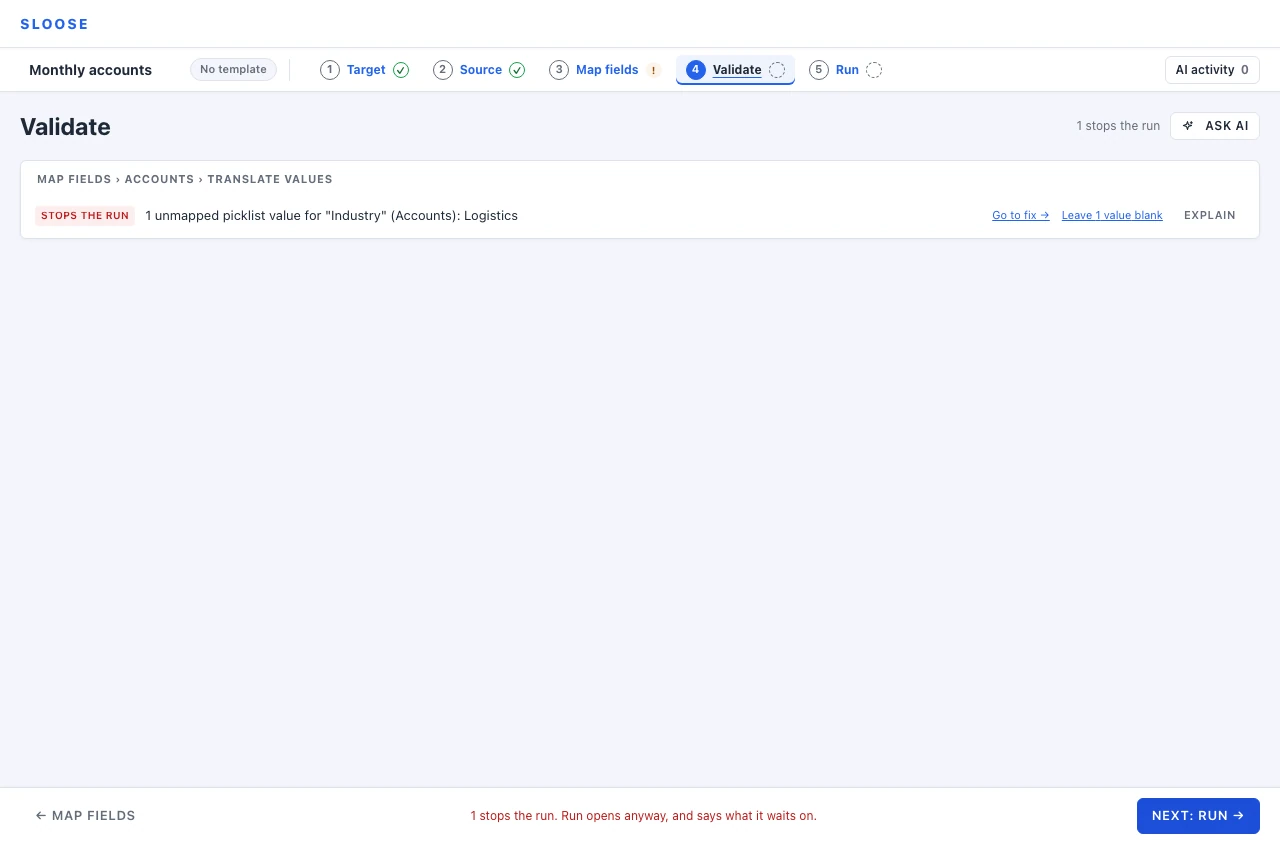
Everything Sloose can tell you without writing anything, in one list. With no file loaded yet there is nothing to check, so Validate says it needs one, with the way to Source.
Every file, not the one you were last looking at
Section titled “Every file, not the one you were last looking at”With more than one file, this step checks the whole set — so a problem in the file you are not looking at still appears, and every message says which file it is about. An import with one file prefixes nothing, because the import is the file.
Go to fix opens the file a problem is about, whichever one you were looking at. A problem between two files opens the one its fix is on: a link that finds nothing opens the file doing the linking, files that look each other up in a circle open the file doing the looking up, at the link to take out, and rows nothing refers to open the file they are in.
Each file is only asked about the modules it has something to do with. The contacts file is not told it has no Account Name; that is the accounts file’s job, and Sloose knows it — unless the contacts file would make Accounts itself, from their key alone, when what that record would lack is said (below). What IS said once, about the import, is a module nothing feeds at all.
Some things are judged per file rather than per module, because they are settings a file carries: how each module’s existing records are recognised, which rows it takes, and its row filter. So Contacts is set to “Some may exist” but the match rule is not filled in can name one file and not the other — and a file is only asked about the modules it actually writes into or looks up, so you are never held up by a setting that belongs to somebody else’s file.
Errors block, notes do not
Section titled “Errors block, notes do not”An error means the run cannot proceed: a required field nothing is mapped to, a formula that does not compile, a match rule using a method your CRM’s search will reject. You can still go on to Run, and it opens, but it won’t start, dry or real, while one stands. It lists what stops it, each with the way to it (see What stops a dry run).
A note means Sloose thinks you may not have intended this. A field that will import empty on 40 rows. A Which rows rule that holds back every row. Duplicate rows in the file. You can run anyway — notes exist because “this is unusual” and “this is wrong” are different claims, and only you know which one applies. With nothing stopping the run, the foot of the page says so, and how many notes there are.
Grouped by the part they are about
Section titled “Grouped by the part they are about”Problems are grouped by the part of the import they are about, named as the steps along the top name it. For example:
- Map fields › Contacts (people.xlsx) › Which rows & existing;
- Map fields › Accounts › Translate values;
- Source › customers.csv;
- Across files, for the checks between files.
The worst come first. A picklist value with no mapping is fixed on Map fields’ Translate values, even though it surfaced during validation, so that is where it is filed, with a link straight to it.
Each line says what it is:
- Stops the run: an error.
- Needs you: something only you can answer.
- Will be refused: rows Validate knows the CRM will reject — a value that is not an email, a phone number, a website or a date in a field of that kind, or a required field left blank on a record the run would create. The run goes on, and those rows come back as failures.
- Check: guesses nobody has looked at yet.
- Note: something unusual, which you can run with.
An error or a note has Go to fix; a guess to check has Review, and a part that needs you Go to it.
Guesses waiting to be checked are listed with the rest, because a run made from a guess nobody read is the import the guess made, not yours.
That grouping is the whole design of this step. The question you have when looking at a problem is “where do I go”, and the answer is on the page.
One-click resolutions
Section titled “One-click resolutions”Some problems come with the fix attached. Unmapped picklist or lookup values carry a Leave n values blank button, which writes the explicit “blank” choice into the value map for each one.
That is a real decision, not a shortcut past the problem: you are saying these source values have no destination equivalent and the field should be empty for those rows. It is recorded in the value map like any other mapping, and it will still be there next time you load the template.
An unmapped picklist value, or one mapped to an option the CRM no longer has, also carries Read field again, which asks the CRM for that module’s fields once more: an option added there since the connection was last read then counts, and Sloose says whether anything changed. A formula calling a helper that the library version in force does not have offers Keep vn for this import (see Versions).
What it checks
Section titled “What it checks”Roughly in the order the steps come. Every file in the import is checked, not the one you are looking at, and each message names the file it is about when there is more than one.
Between files (only when the import has more than one — see More than one file)
- A link that resolves to nothing: values one file looks up that no row of the other provides.
- A link that searches the wrong field: the values one file looks up are another file’s key — its account numbers, say — but the link searches a different field, such as the name. Search by field puts it right.
- Files that look records up in each other in a circle — two that each need the other, or more that each need the next. This one is an error: files run in the order their links need, and a circle has no such order, so one link in it has to go.
- A file that saves a record before one it links to (a manual save order, or two modules that link to each other), when another file links to that same module by value. An error: a record saved before its parent is tried could not wait for a parent that failed. Save the parent first, or take the link out.
- Rows nothing refers to — a note, since that is usually fine and occasionally the sign that one of the files is the wrong export.
Data
- A file whose saved exclusions, corrections and filter could not be read when the import opened. This stops the run. Nothing about the file is wrong, which is the trouble: rows you held back would go in. Source says so on that file, with Keep the file as it is beside it. Pressing that clears it at once and saves the cleaning as it now stands. Changing the file’s cleaning any other way clears it once that change is saved. Replacing the file clears it too.
- Some of a file’s saved work (guesses waiting on it, and ones turned down) could not be read. This is a note: those guesses are not shown, and nothing imports wrongly because of it.
- Duplicate rows within the file.
- Required fields with blank rows, listing which rows. Where the CRM itself requires the field and the row’s record would be created, the rows are listed as Will be refused; otherwise it is a note.
- A row filter that does not compile, or that reads a column the file does not have.
- A row filter that reads this row’s records — the file is filtered before any record exists, so the reference could never resolve. Use Which rows on the module’s card on Map fields instead.
Map fields, each under its part: a module’s Which rows & existing or Map columns for one file, or its Translate values, which are the import’s across files
-
A module that says some rows may exist, with no key filled in.
-
A required field a record made from its key alone would lack, an error. Under Some may exist, a module matched on its key with nothing else of its own to write makes a record holding only that key where a row finds none — and one without a field the import requires (the CRM’s, or one your organisation marks Required for imports) is refused. Map the field, or press Use Updates only to only find these records and make none.
-
A file that makes records from their key alone beside one that makes them whole, a note. A contacts file matched on account name under Some may exist makes an account holding only its name for a name it does not find, while the accounts file makes them with everything else: a name the two spell differently becomes a second, thinner record. Use Updates only makes the contacts file only find them. Two files that each match on the key alone are not compared.
-
A key that cannot find the records it makes, a warning. A key may be matched by a formula of its own. Where that formula reads another column than the one the import writes into the field (matched by the column Old No, written from the column Account No) a record this import makes holds the written value, the next run searches for the other, finds none and makes the record again. Match by the value written, or write the value matched by. A formula that only tidies the same column is the same value, and nothing is said:
row["Account No"].trim(),String(…), a blank default, the column spelt another way. For anything else that differs (a prefix joined on, a change of case, a cut, a helper’s answer) Sloose does not decide whether the two are the same value: the warning says “If those are not the same value” and claims no second record. Two fixed values are compared only on a text field, where two that differ are two values; on a number, a date or a yes/no field, where “1,000” and “1000” are one value, Sloose does not decide. Nothing is said where the key matches by what a value starts with or contains, where the key’s own mapping is not what a record is made with, or where the module makes no records. -
A module that is only found, never made, a note. Under Updates only, matching on the key with nothing else to write (a formula over the record’s own id beside it, which is filled after the save, makes no record either) finds records and never makes one: a company the CRM already holds is linked, and a new one is not created, so the contact on that row imports without its account. Choose Some may exist to make the new ones holding their key, or map more of the module; if the file only ever names records your CRM already holds, there is nothing to do. Not said when the module is set to All new or Some may exist, or when the files that run before this one make every record it names, matched on the same value. A file under Updates only makes none, and neither does a row its gate holds back, nor any row of a file whose gate reads
rec.*(decided only as the run goes); a file that finds its records by another field counts only under All new, since a record it finds keeps the value it had. When an earlier file makes some of them, the note quotes the names it does not make. A file that makes them but runs after this one is named in the note: files run in the order they were added, unless a lookup between them says otherwise. -
A field filled after the save, where a found record is left, a note. A field a record only gets once it is saved (a link to a record the row saves later, the record’s own id) is set by the row that creates the record, and on one a row finds only under Update it: with Skip it, the default, or where an update guard says no, a found record is left as it is and takes none of them. Said once for the file and module; choose Update it to set the field on found records too. A link to a record the row saves later is by default only filled where the found record’s field is empty, and the note says fill for it where it says set for the rest; a mapping that says its own
patch(anoverwriteofalways, or apatchthat says none) replaces what is there, and the note says set. -
A match method the destination’s search does not support.
-
A key reading
rec.*— those records do not exist when the check runs. -
A formula that reaches the row’s records without naming them.
eval, the formula’s ownarguments, orrecused any way but straight before a module’s name (rec.Account.Name): handed to a function, kept in a variable, indexed by something worked out. An error, at the formula; the run refuses it too, before anything is written. -
A formula over 10,000 characters. Sloose reads a formula before a run to know which columns, helpers and records it uses and when it can be worked out, and it reads none longer than that, so a longer one is not run. An error, at the formula, which says how long it is; the run refuses it too, before anything is written. Shorten it. A template or an import that holds one still opens and saves.
-
A formula that reads a field the CRM fills in as it saves a record. A formula that reads, by name, a read-only field of one of the row’s records, one the CRM does not report as filled in after the save, reads it empty for a record this import makes, whenever the formula is worked out; for a record the row only finds, it is there. (The fields Zoho stamps itself — when a record was created or last changed, who did it, its owner — and auto-numbers are worked out after the save from the record read back, and are not warned of; nor is a formula that also reads one of them from the same record, nor one whose record a sibling after-save formula of the row makes the run read back — the record is fetched once for the row’s after-save formulas. Nor is a formula that reads the record whole, such as
JSON.stringify(rec.Account): it names no field, and it is worked out after the save from the record read back, every field filled in.) A warning, once for each formula and field, and only where the import can make that record.rec.Account.idis not warned of: a record’s id is its own from the moment it is saved. -
Gates and update guards that do not compile, or that reference a module not in this import, or one written later in the row than the module using it.
-
An update guard that reads a field the connection does not have — an error, where the guard is asked (a match is looked for and the answer is Update it). The run fails such a guard closed and leaves every match untouched; read the connection again on its page, or change the guard.
-
Required fields nothing is mapped to.
-
Formulas that do not compile.
-
Fields mapped from a column the file does not have — an error, unless the formula falls back on purpose where the column is missing, which is a note.
-
A lookup found by search, saved before the module it searches. Where the file fills the field a lookup searches by — Account Name, say — and the save order writes a Contact before the Account its lookup searches for, a row whose Account this import makes finds none, since it does not exist yet. That is an error, naming the lookup, where the searched module can make records for this file. The message names a save order only after trying it against everything else an order decides in this import: a rule or update guard that reads a record, a required field filled after its record is saved, and a link another file needs. It says to switch Save order back to Auto on Run where Auto does it, to put the searched module first (or to save the modules in a given order) where that does, and where none does, which is the case when other modules look each other up in a ring or a rule needs the other order, it says so and names the other ways out: take the lookup out, or fill it from the row’s own record (
rec.Account.id). With more than five modules it says only that Sloose found no order that does. Where the searched module makes none (Updates only, and no new record when several match) it is a warning: an Account already in your CRM is found whichever is saved first, unless this import changes the value the lookup searches by: one it is writing in is not there until the record is saved, and one it is replacing (a renamed Account searched by its old name) is not there after. Where the import changes the searched field, the warning says so and the searched module goes first: a lookup by the value written in then finds its record, and a lookup by a value the import replaces is served for every row by no save order, so search by a field the import does not change, or link by the record itself (rec.Account.id). And a lookup that searches by another value than the one the import writes into that field (Accounts renamed from the Company column, and a Contact searching them by another column; a formula that only tidies the same column, such asrow.Company.trim(), is the same value; a change of case or a prefix is not known to be) draws a warning in whichever order, the searched module saved first included, unless that module only makes records (All new): a lookup by the new value finds the record once the module is saved, and a lookup by the value it replaces finds it only before, and only for the first row naming each record. Modules that search for each other in a ring have no order that serves them all, and the message says to take one of the lookups out, or make it a formula over the row’s records. Nor does any order serve a lookup that searches by a field a formula makes from the looking record itself; that is said the same way, with the same way out (take the lookup out, or link by the record itself). Where the formula reads some other module’s record, Auto saves that module first and the lookup is served; only an order set by hand against it leaves the field late, and then the message offers Auto. -
Dates written in the other order. A column holding dates that are days only month first (
03/25/2026), in an organisation that reads day first, is an error: those values are not read the other way, and would be sent as they are and refused (Zoho answersINVALID_DATAto a date field sent a date written another way, on a new record and on an update, and leaves an updated record’s date as it was). It says how many, the first rows, and both ways out — Date order under Settings → Reading files, or the column mapped through a formula that names its order, which the message writes out with the column’s own name:helpers.date(row["Closed"], 'MM/DD/YYYY'). A column that mixes the two orders is an error as well, since no one order reads it. In an organisation that reads dates year first, a date written year last (25/03/2026) is the error: it is read year first, found to be no date, and refused, so the message gives the reading each value has (day first or month first) and the order to givehelpers.date: the one every value fits, or none where some are days only day first and others only month first, which it calls mixed. A date written year first in any of its spellings there (2026/03/04,2026.3.4,26/3/4) is written as it reads, and is no invalid value. A column a formula makes withhelpers.date(…)is an error too where its values come out as numeric dates beside year-month-day ones: a value that does not fit the order the formula names is handed back as it was written, and would then be read in your organisation’s order. That is judged row by row: only a value the helper itself handed back counts, however the call is wrapped (helpers.date(row.Born, 'MM/DD/YYYY') ?? ''), so a formula with a branch that returns the cell as it is (row.us ? helpers.date(row.Born, 'MM/DD/YYYY') : row.Born) is not blamed for the rows that branch makes. (That is how it shows. A formula column where every value was handed back has nothing beside it and is not caught.) -
Dates that read either way. A date column in which every day is 12 or less (
03/04/2026,01/05/2026) is a real date day first and month first, so nothing in the file says which, and your organisation’s order decides. Zoho accepts either, so a wrong guess is not refused: it is written wrong. This is listed as a check, not an error, and it does not stop the run. It says how many dates read either way, the first rows with both readings written out (day first 3 April 2026, month first 4 March 2026), and, where another date column in the same file holds dates that only make sense the other way, that column by name. For a date field filled straight from a column it offers Day first and Month first, each of which maps the field throughhelpers.datewith that order; a formula is told the order to givehelpers.date; a date-time field is told to change the setting under Settings → Reading files or to write the dates year first (2026-03-04). It is judged on what the run would write under each order, sohelpers.date(row["Close Date"])with no order is caught as a plain column is, and a formula that states its order is not. It stays quiet when one value settles the column (25/03/2026), for dates written year first, months by name, a day and month that are the same number (05/05/2026), and rows you have held back. One case it cannot see: a helper from your own organisation’s library that callshelpers.dateinside a formula. The check stays quiet there and the organisation’s order decides, as it did before the check existed. -
A letter the file lost. A value that would be sent with a replacement character (�) in it, a letter lost to a wrong reading of the file: a warning, with the rows. If Source offers another reading under the file, try it; otherwise the file itself holds the character, so correct or exclude those rows, or run as it is.
-
A lookup that names a record only a later row makes or renames. A row’s search finds the records the rows above it made, and its own row’s (Map fields says what a search sees). Where a row looks up a value that only a later row of the same file makes, the link would not be made unless your CRM already holds a record of that value: a line to check, naming the lookup and the rows (Sloose cannot see what your CRM holds, so it says so either way). Where the searched module is matched, the later row may instead rename a record your CRM already holds, and then the link may be made or not, depending on how the records are sent; the line says that too. A lookup of a renamed record’s old name is not listed: Sloose does not know what a record was called before the run. A value another file of the import makes is found, since that file runs first, and is not listed. Put the rows that make those records above the rows that look them up, or make those records from a file of their own that looks nothing up in this one. Only a search by equals is checked this way: a starts with search that names a later row’s record is not linked either, and nothing says so before the run.
-
An accent written as two characters. A value this import finds records by, written with a letter followed by a separate accent mark, as some Mac exports write it: a line to check, with the rows. Your CRM reads that as a different value from the same text with the accent as one letter (see Map fields), so it does not find a record written the other way. There are two sides to a finding, and each has its own line:
- the field that is found: the field a module is matched on, or any field a search lookup in this import searches by, in this file or another. Matched on, a row would make a second record that looks the same (or, under Updates only, be left out);
- the lookup that searches: its link would be left empty.
Compose them reads that side’s values through a formula that writes each accent as one letter; your file is not changed. For a key that searches by its own formula, both what it searches by and what it writes are composed. Where the import writes the records a lookup searches for, each line names the other, by file and field. If the other is listed too, compose it as well: one side composed alone no longer finds the other. If only one is listed, that one press is the whole fix. A fixed value has no button: change the value. Nor has a column a formula cannot read (a header that is repeated, say). Leave them as they are if both spellings are meant, or if your CRM already holds these records written the two-character way (from an earlier import of the same file, say): composing would then stop them being found. One case it does not read: a module matched by its default rule on a field the import does not map.
-
Numbers written two ways in one column. Sloose reads each number by the decimal mark it shows —
1.234,56and150,00 €with a comma for the decimal,1,234.56with a full stop — so a column written the European way throughout imports as written. A column that writes some values one way and some the other is probably wrong in one of them, and Sloose says so, with values of each. -
Numbers only a decimal mark could settle.
1.234is a thousand-odd with a comma for the decimal and a little over one with a full stop. When nothing else in the column shows which, Sloose reads it the way your organisation does, from its time zone, says what it will import as, and gives the formula that reads it the other way:helpers.num(row["Amount"], 0, ','). -
Percentages that are still fractions. A spreadsheet stores 15% as
0.15and shows you15%, so a percentage column out of Excel — or a CSV somebody made in Excel — is a hundred times too small, and every other check passes it, because0.15is a perfectly good number for a percentage field. It just means 0.15%. Sloose says so when every value in the column is below 1, and offers Multiply by 100, which maps the field through a formula. Your file is not touched.
Rows of a subform (a file made the rows of a subform)
- The column that names the parent is not in the file, an error: no row could be put in a record. Choose the column again on Map fields.
- Two files replace the rows of the same parent, an error: the second would delete the first’s rows, so put them in one file.
- A column looked up from another module, an error: a subform’s columns cannot be looked up yet, so map them from a column.
- A parent with more rows than its layout holds, an error where it is above the highest limit of any layout, and a warning where it is between the lowest and the highest (the run checks each parent’s own layout). A parent with more rows than a run may write, an error, since a parent’s rows are written together.
- A required column of the subform with nothing mapped into it, or blank in a row of a parent the run will write, an error where every layout requires it and a warning where only some do, naming those layouts. The CRM does not enforce a subform column’s required for rows written through the API, so Sloose does.
- The connection cannot read layouts, a warning: the limit and the required columns are not known, or may be out of date, and the finding takes you to the connection to Reconnect it (a personal connection is told to choose another).
- The limit is not known yet, with the permission to read layouts already granted, a warning: a parent with too many rows is not checked here. Reconnecting is not what it asks for; it takes you to Map fields.
Notes (a column mapped to Note title or Note content): three checks, all warnings, and none stops a run.
- A title mapped without content: a row with no content adds nothing.
- A title or content over its limit (120 and 65,535 UTF-16 units), with the rows named, the first few and how many more: those notes are refused and their records are written.
- A note mapped for a module the file writes no record to: nothing is added.
- A formula into either row is checked as any formula is, and the usual checks that block a run still apply: one that does not compile is an error. At run time a formula that cannot be worked out fails that row.
Values
-
Unmapped picklist values, picklist values produced by a formula that are not valid options, and values mapped to an option the CRM no longer has. A value for a single-select field that differs from an option only in its capitals, or in spaces around it, is not one of these: Zoho stores the option’s own spelling (what counts).
-
Unmapped lookup values, with the suggestion to switch the field to search mode instead.
-
Fields that will import empty because their source value is mapped to blank — with the row count, so “40 of 500” reads differently from “40 of 41”.
-
Files. For a field that takes files: a file the CRM would refuse by size, type or count, a name that finds no file or several, a file no longer stored, and the permission to upload files. Validate waits for the list of the import’s files before it judges them. All of it is on Files on records.
Fixing a value versus fixing the mapping
Section titled “Fixing a value versus fixing the mapping”Worth separating, because they solve different problems.
Fix the value when the file is wrong: a typo, a stray space, a number stored as text in three rows. Edit it in the grid on Source. The edit belongs to this import and does not touch your file.
Fix the mapping when the file is right and Sloose’s reading of it is wrong: the column is fine, it just needs a formula to trim it, or the field should have been a different one. Fix it once on Map fields and every row is fixed.
If you find yourself editing the same problem in twenty rows, that is the file telling you it is a mapping problem.
Asking the AI
Section titled “Asking the AI”Where AI is configured, Explain on a problem asks the AI about that one problem — Why does this stop the run? for one that stops it, Does this matter here? for a note, How do I fix it? for either, or your own question. It sends the rows the problem names, or the file’s first few when it names none (a field nothing fills, say), so the AI can see what the file holds. What it proposes lands on Map fields as guesses, each line of the answer saying where it went with Go there, and nothing changes until you use one; Undo turns them all down while none is used. A fix for something you have changed since the question was asked is not offered, and the answer says so. The conversation is kept with the import at that problem, each line still with Go there when you come back to it. A problem about the import as a whole — files that look each other up in a circle, a record saved before one another file links to, a module no file feeds — has no Explain of its own: Ask AI at the top of the list is about those. A file’s duplicate rows are one problem, listed a group at a time: the first group’s line has the Explain, and it asks about every group in the file, the ones counted under the list too.
Ask AI at the top of the list reads all the problems together and describes them in your organisation’s own vocabulary. It asks Is this safe to run?, then What should I fix first? when something stops the run, or What should I double-check? when there are only notes. You can also ask your own question. It’s there whenever Validate lists an error or a note.
What it proposes lands as guesses on the parts the fixes are about, in the file each is for, as Explain does. Each line of the answer says where its guess went, with Go there, and Undo turns them all down while none is used. A value’s guess waits in the file that holds that value, so one answer about values from two files lands some in each. A fixed value, or a field to leave out, is said in the answer for you to set on Map fields. The conversation is kept with the import at Validate, so the next question there carries it on.
A fix for a lookup is held to the rule Map fields holds every answer to. A column fix of values that are not record ids becomes a search only when the column’s header names a field the module can be searched by, or when nine in ten of its values are email addresses or phone numbers and the module has exactly one such field to search; otherwise it stays a column and says it links only through Translate values or by search. A search fix whose values — or whose formula’s results — are record ids becomes the column, or that formula. Each takes reading the values, so a fix for a file other than the one on screen, whose rows Explain is not sent, stays as proposed; and no search reads a column whose name another header shares in a formula.
It proposes; you decide. Nothing changes on the model’s say-so. See Your data and the model for what is sent.
Excluding rows instead
Section titled “Excluding rows instead”If a handful of rows are beyond saving, exclude them on Source rather than bending the mapping around them. They stay in the file, out of this run, and visible — which is easier to explain later than a formula written to work around six bad rows.