
Your first import
This walks one small file all the way through, so you have seen every step once before you do it with data that matters.
Before you start
Section titled “Before you start”You need three things:
- An account, an organisation and a connected CRM. See Getting started. You start an import on Imports in the app, or from the Sloose tab if your CRM has one.
- Your CRM’s modules and fields read, so Sloose knows what you have. Connecting the CRM reads them — that is discovery — and if the modules list is empty, an administrator reads the CRM again with Read again on the connection’s Overview.
- A file with a header row. We will use a handful of accounts.
Every screenshot below comes from a tour with sample modules that writes to memory rather than to a CRM, so the modules and rows in them are not yours. To practise without writing anything to your CRM, go as far as the dry run on Run: it writes nothing.
Start the import, then Target
Section titled “Start the import, then Target”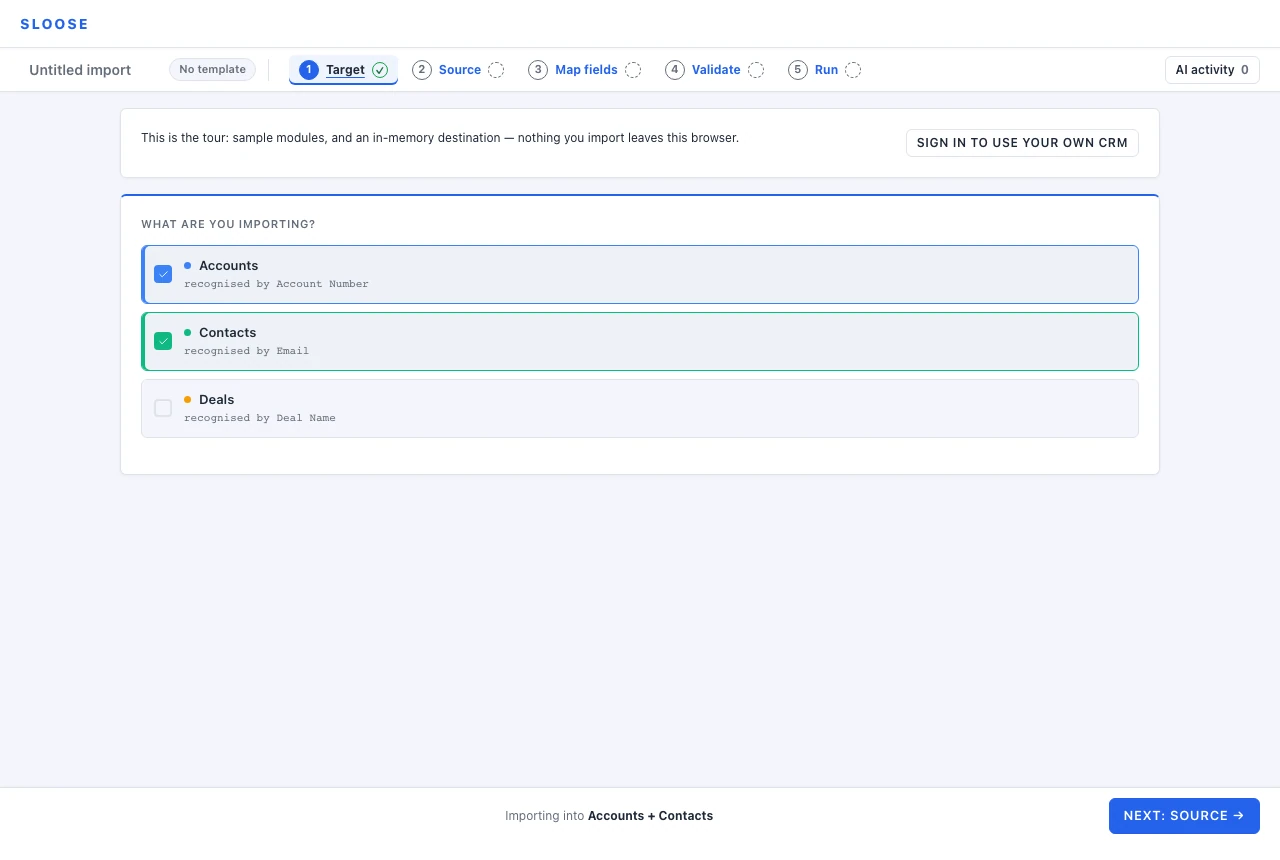
On Imports, Start an import, and give it a name as you do: it is optional, but it is what you will look for later, and “Monthly accounts” beats an untitled import from three weeks ago. From then on it is saved as you work — close the tab and it is where you left it.
Target comes first, in two stages: the connection it writes to, then the modules this import feeds, with Next: Modules → between them. Every import names its connection, even in an organisation with only one, and it is shown first so nobody has to guess where the records go: an organisation with one has it chosen already, and so does an import started inside a CRM tab, which takes the CRM around it. When your organisation holds more than one connection — two clients’ CRMs, say — and none is obvious, you are asked which before anything else. Most first imports are one module — start there; a row can create records in several modules and link them, but that is easier to reason about once the single-module case is familiar.
Then Next: Source →.
Source — load the file
Section titled “Source — load the file”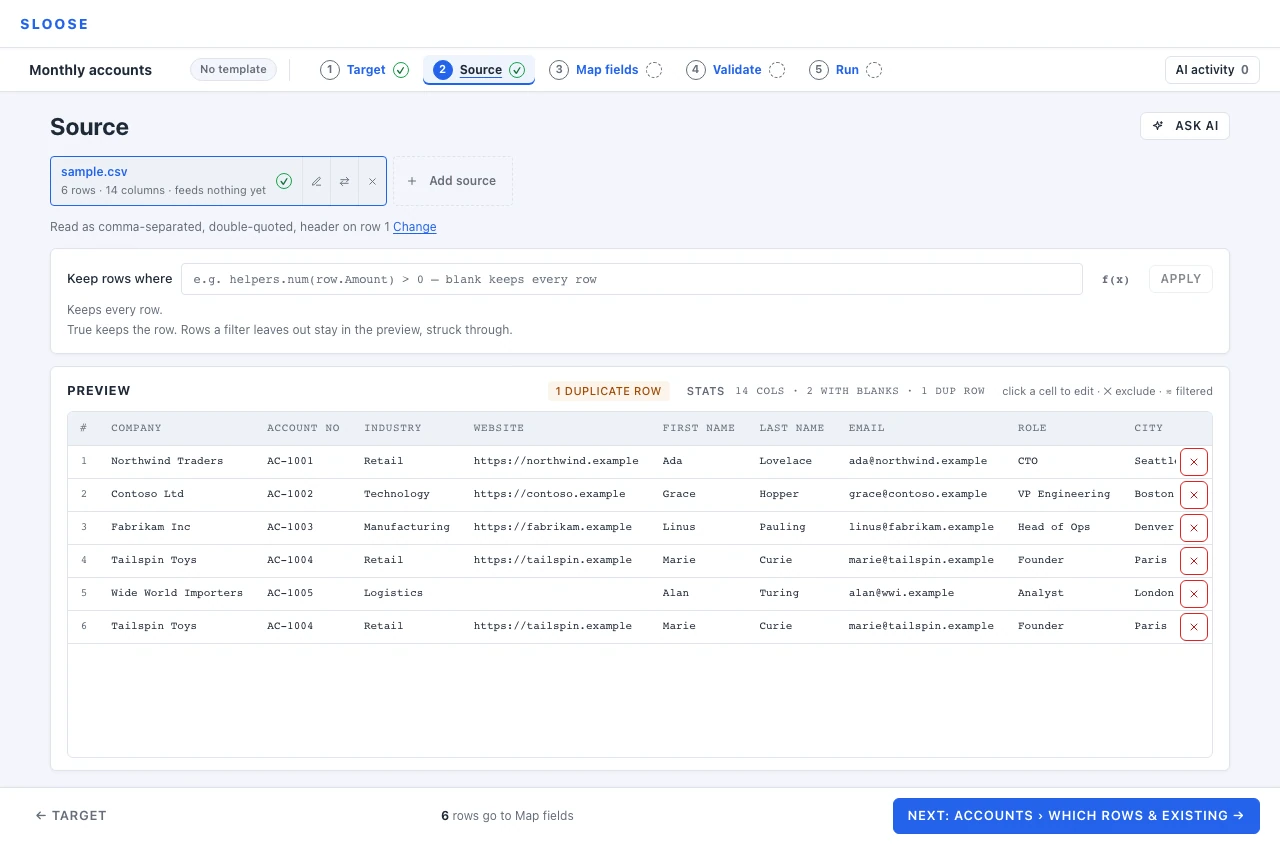
Paste or upload. The file is read in your browser, and the rows it read are kept with the import so that you — or a colleague — can pick the import up again.
Sloose reads the delimiter automatically, and tells you what it found so you can overrule it if it guessed wrong. The file’s tab gives a row and column count, and the preview checks the file for duplicate rows.
Two things worth doing here before you move on:
- Look at the duplicate count. If the file repeats a row and you are creating records without matching, importing both writes the same record twice. Leave the copy out now — open the count above the rows and press Leave the repeat out, or click the row’s ✕ — rather than cleaning it up in the CRM afterwards.
- Fix anything obviously wrong in the grid. Cells are editable. Your original file is not touched; the edit belongs to this import.
Map fields — decide what counts as the same record, then connect columns to fields
Section titled “Map fields — decide what counts as the same record, then connect columns to fields”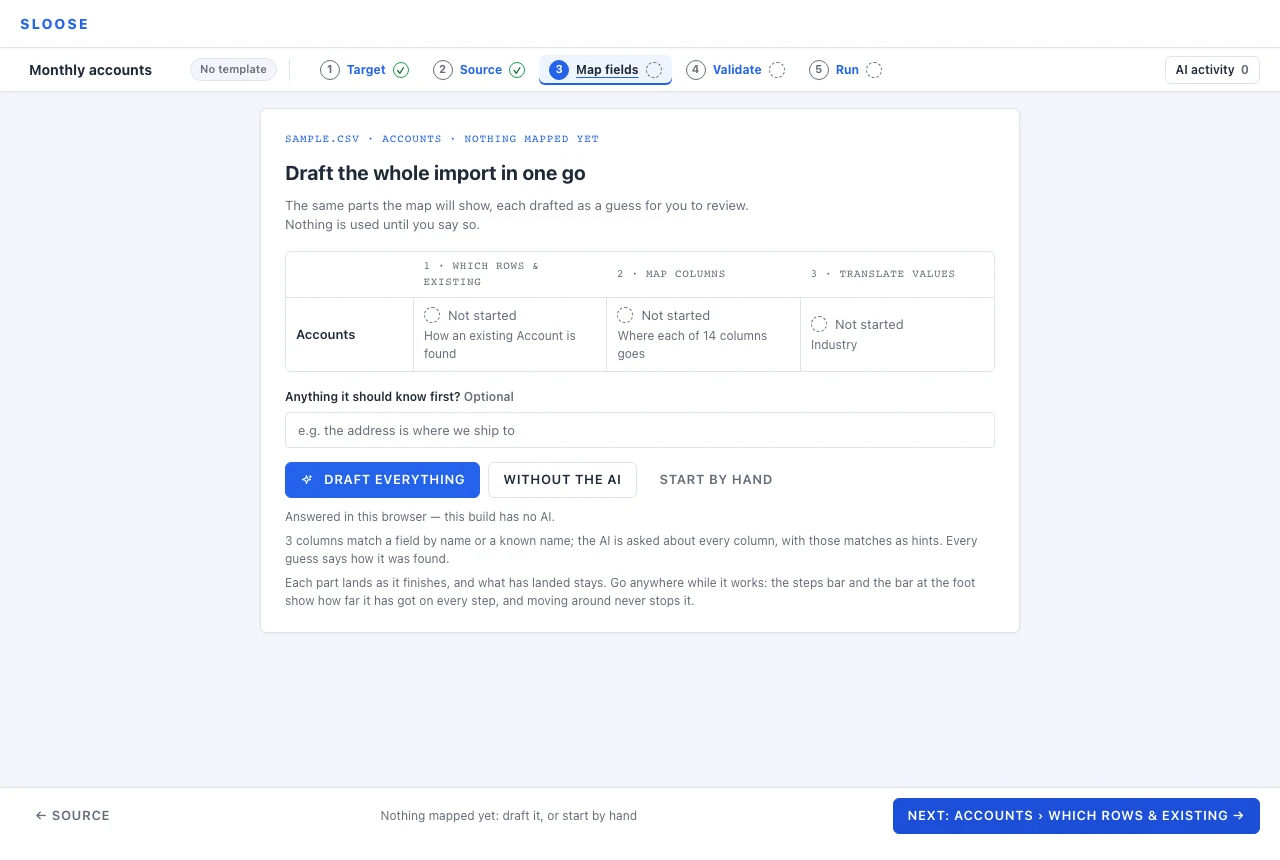
The step opens on one card: Draft the whole import in one go. Draft everything takes a first guess at every decision on the page — the free check by name first, then the AI for the rest; Without the AI is the free check alone; Start by hand guesses nothing. For this walk, press Without the AI. Nothing is used until you accept it, and a map of the work takes the card’s place: a row per module and three parts, with the footer’s Next going to the next one not done.
The map puts the step’s three parts in order: Which rows & existing, Map columns and Translate values.
First, Which rows & existing. Its card says which rows are the module’s — every row, unless you write a rule — and whether some of them may already be in your CRM. It decides whether you end up with clean data or a pile of duplicates, and it comes before the columns because it shapes them. It asks whether some of these may already be in the CRM:
| All new | No matching. Every row creates. |
| Some may exist | Recognise what exists, create what does not. |
| Updates only | Recognise and update. Anything unmatched is left out. |
Our sample is all new, so pick All new — and read the warning it gives you, because it is the truthful one: import this file once, or you will create duplicates on the second run.
For the other two, you also say how a row finds its record: a field, a comparison, and where the value comes from in your file. That field is pinned to the top of the list below with a KEY badge, because mapping it is the rule. Sloose says what that value actually looks like across your file — Checked on this file: 9 values, all different, none blank — so you find out here, not at row 400, that the column you chose is empty half the time. The same card says what a row that finds its record does, and what happens when several match. Decided, you move on to the columns; the part’s cell on the map keeps the decision in a few words and is the way back.
Then the columns. The free check’s guesses are on the rows, each saying how it was found — by name, known name, by its values — and none is used until you say Use. Ask AI, at the top right of the columns, reads a few sample rows and can propose a formula, or propose splitting one column across several fields. Nothing the AI suggests is applied until you accept it.
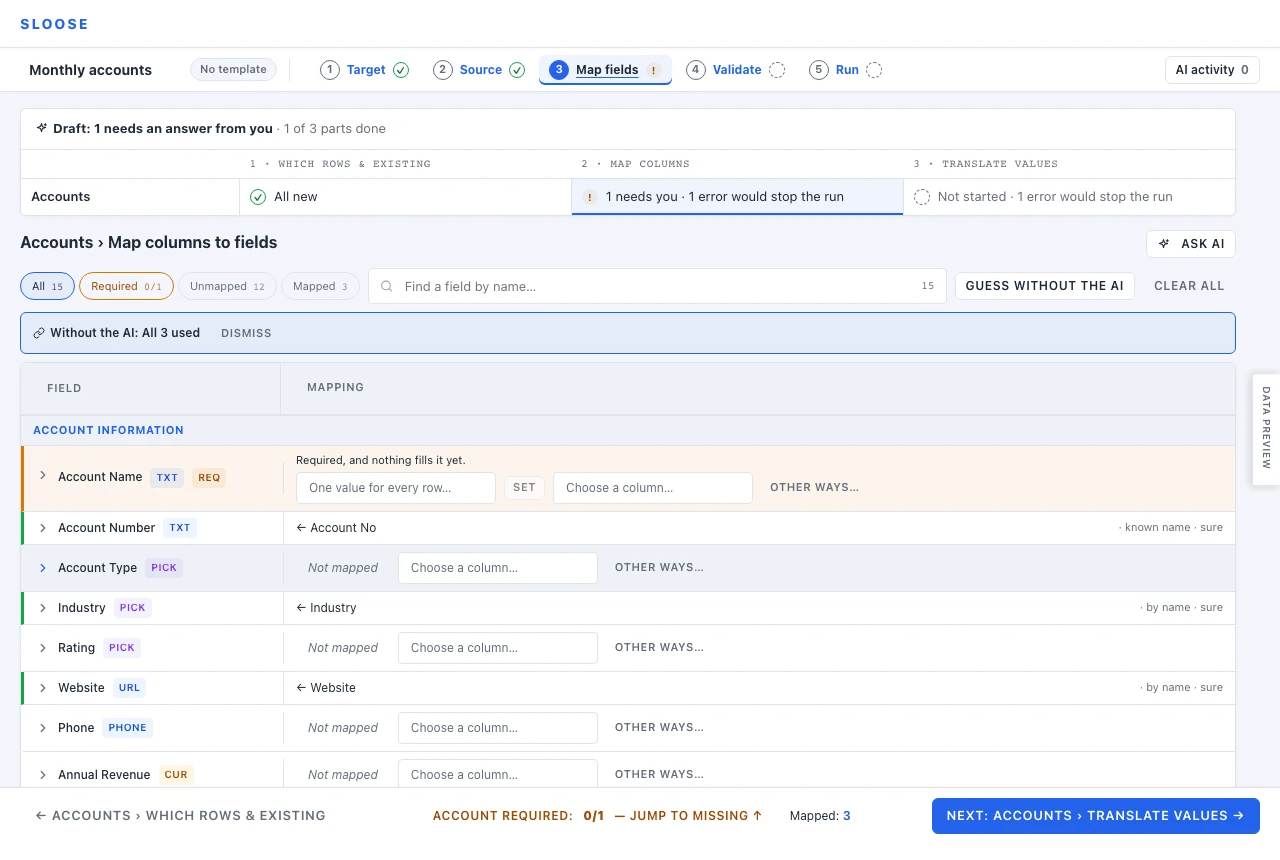
The free check makes one pass and stops; Start by hand would have guessed nothing at all. A pass is deliberately conservative — it proposes what it is confident about and leaves the rest to you, because a wrong mapping that looks right is worse than an obvious gap.
A guess is a row marked GUESS, with Use, Modify, No thanks and Not quite… on it, and one bar over the list says how many are waiting and takes the sure ones in one press. Each used mapping goes on saying how it was found. A known name is one an administrator has recorded your files using for that field — see Field annotations — and when an administrator uses an AI guess for a plain column, that is recorded for the organisation automatically, with an Undo.
Then finish the rest by hand. The footer counts what is mapped and how many required fields are filled, with a way to jump to the missing ones. You can move on with one still empty, but Validate lists it as an error and the run will not start until it is mapped. Under the list, the columns nothing reads are named, so forgetting one looks different from not needing it.
A field can take a column, a fixed value, a formula, or a live search against another module. More on all of it in Map fields.
Translate values — what the file says, in the CRM’s words
Section titled “Translate values — what the file says, in the CRM’s words”The last of Map fields’ three parts.
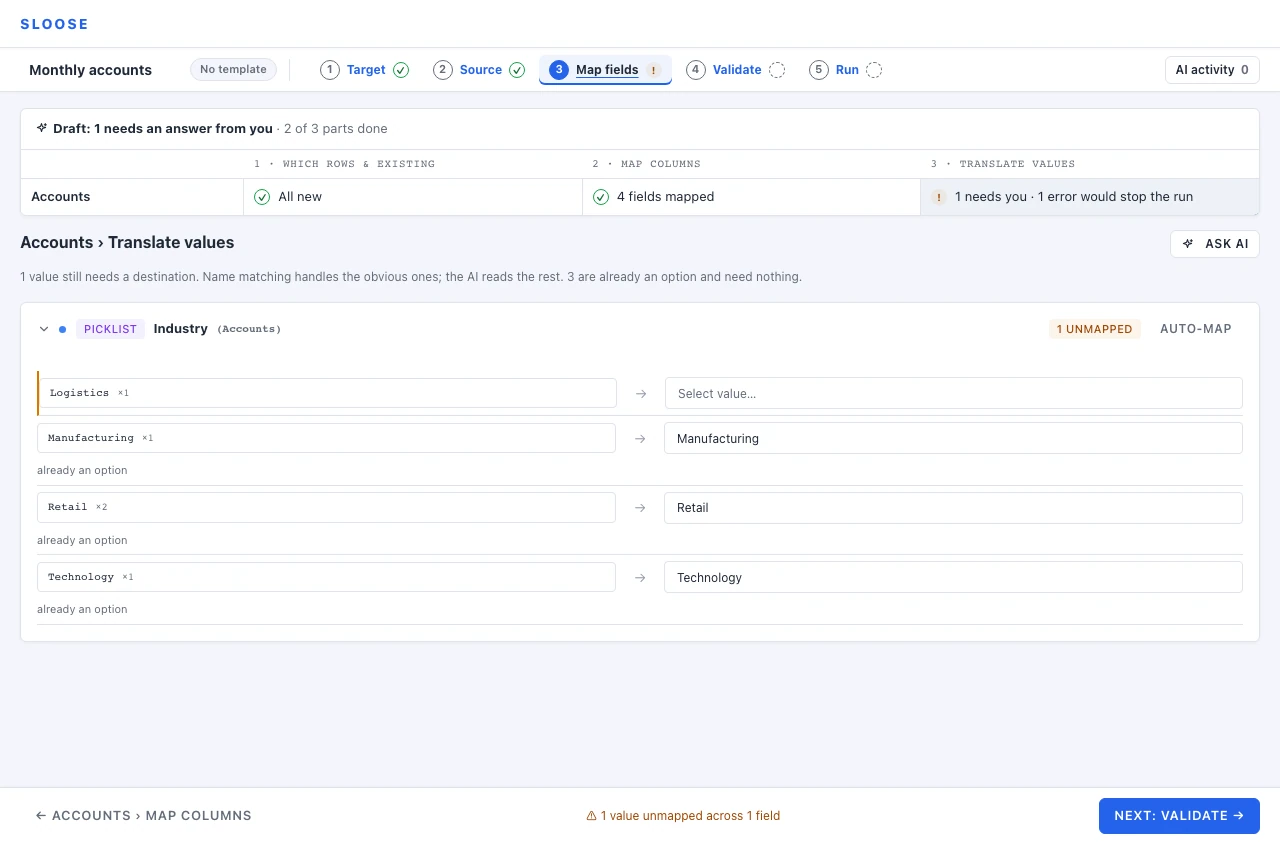
Your file says Tech. The picklist says Technology. This is where you say they are the same
thing.
Anything unmapped is listed. You can map each value, or deliberately leave a value blank — which is a real answer, and better than inventing a category to park it in.
Validate — see every problem before anything is written
Section titled “Validate — see every problem before anything is written”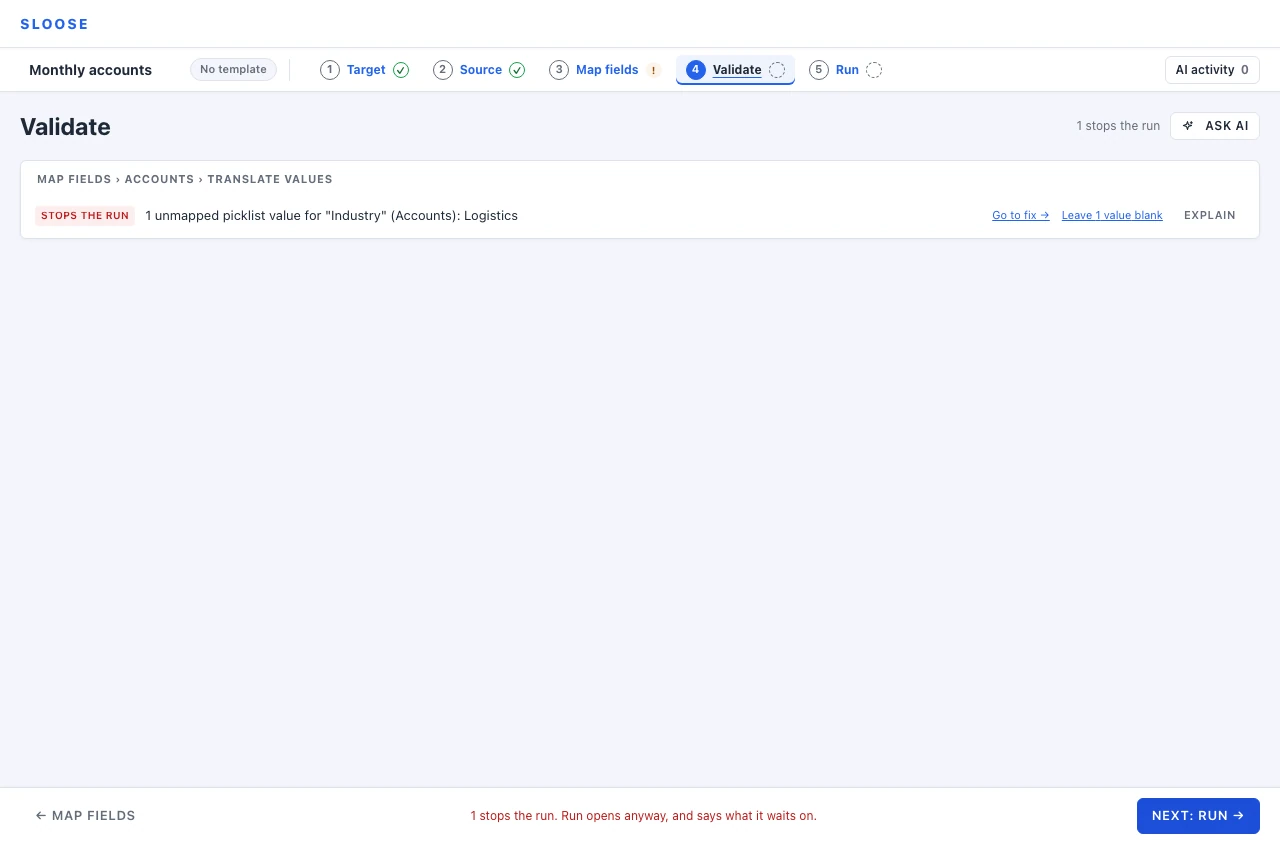
Problems are grouped by where you fix them, not by where they were found, each with a link back to where it is fixed.
Errors block the run. Notes do not. A note is Sloose telling you something you may not have intended — a field that will import empty on 40 rows, say — and letting you decide.
Where there is a one-click way through, it is offered. Our sample’s unmapped picklist value has one: Leave 1 value blank.
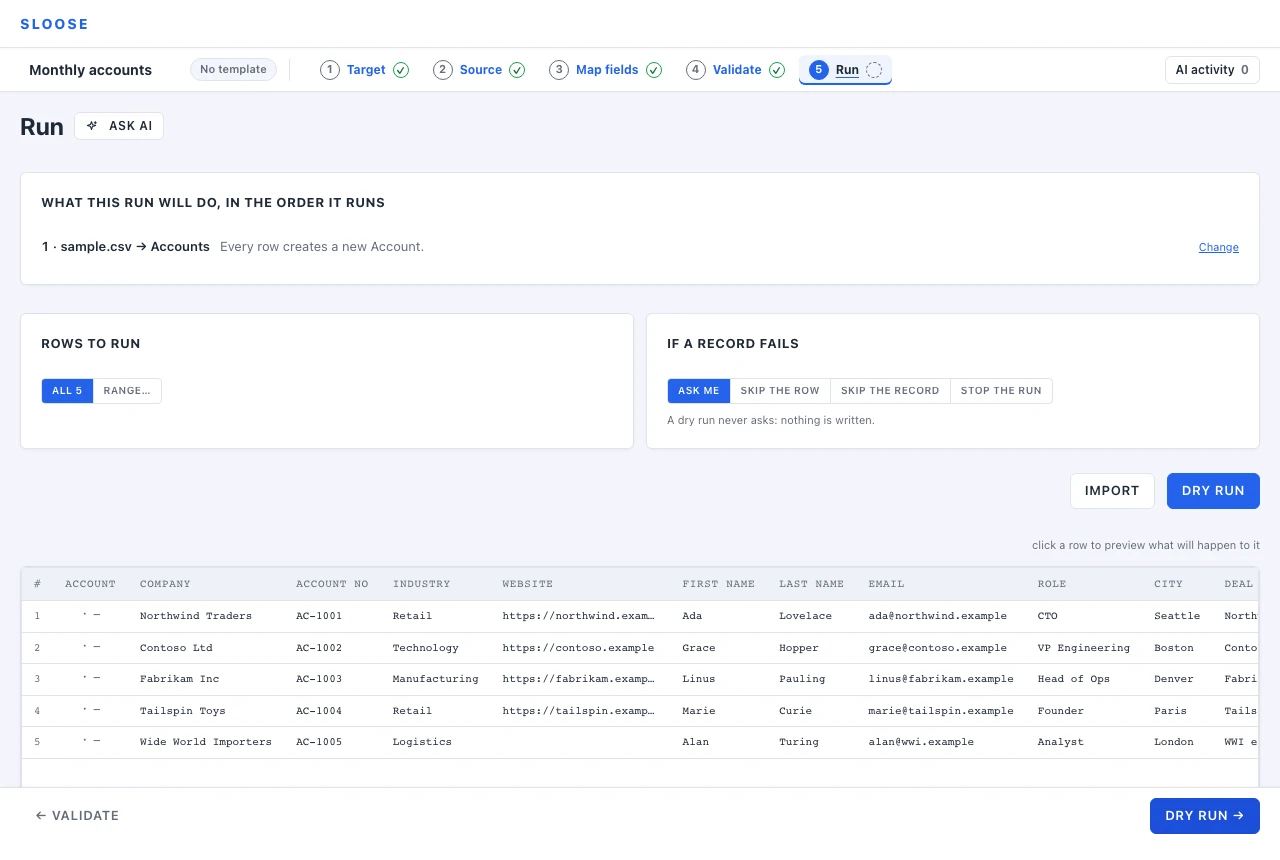
Do the dry run first. It goes through every row and every rule without writing anything, so you see what would happen while it is still free to be wrong.
Beside the step’s name, Run says which CRM the run writes to. Then Import. It asks once — this many rows, into these modules, in that CRM — and on a yes the rows are written, with a live log that shows each row as it is answered. Records go to Zoho up to 10 to a call (Run says how the calls are made up). You can pause and cancel. Sloose asks Zoho to run none of your workflow rules on the records an import writes unless you tick Run my workflow rules for it (Zoho workflow rules). Above the buttons, What this run will do says what each module does — when several records match, too — and If a record fails says what happens on an error; both can be changed before you start.
Results — the panel Run ends on
Section titled “Results — the panel Run ends on”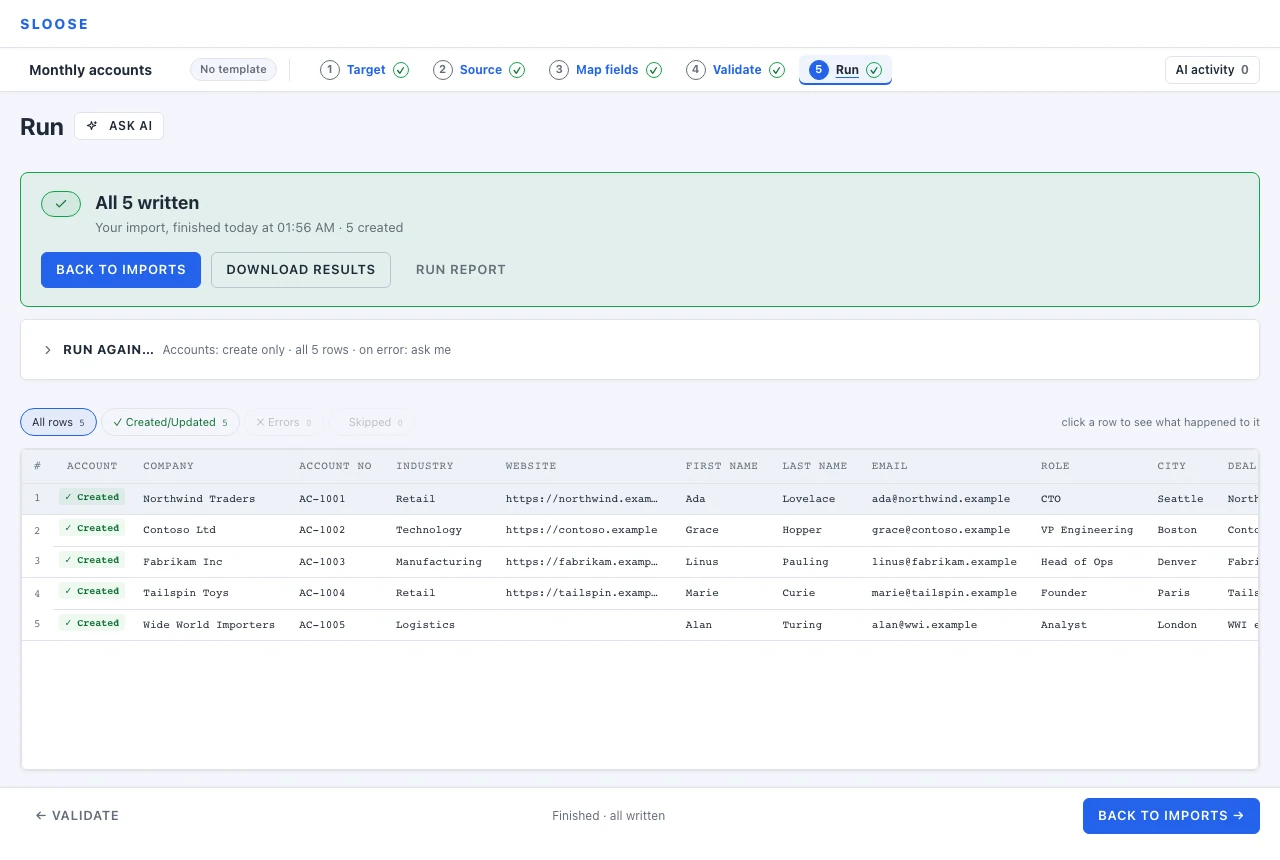
The run ends on a panel that says what it did — every row written, some failed, nothing written, or stopped part way — with the one thing to do next, which the footer’s button does too. The run’s own buttons fold away under Run again…. Below it, every row, what happened to it, and why: filter to errors, click a row to see exactly what was sent and what came back.
If some rows failed and others succeeded, that is a normal outcome, not a broken run: fix the failures and Retry just those. Download results saves the file with each row’s result beside it, to open in a spreadsheet.
Below the panel, After this asks whether to keep the setup: Save as a template — or, for an import started from one, keep what you changed: a builder can update the template, and anyone can save a new one of their own. Next month the mappings, the key and the value maps are already there and you only bring a new file. See Save and reuse a template.
The two things people get wrong first time
Section titled “The two things people get wrong first time”Looking for a field added since the CRM was last read. If the field you want is not in the list, it was added to the CRM after Sloose last read it. Opening an import reads its modules again in the background once their last read is a day old; to have it now, an administrator reads the connection again — Read again on its Overview, see discovery — and it appears.
Matching on a field that is not unique. Matching on company name looks fine on the sample and falls apart on the real file, where two branches share a name. Match on something that identifies one record — an account number, an email address — and if there is no such field, consider whether this file is really an update at all.