
Map fields
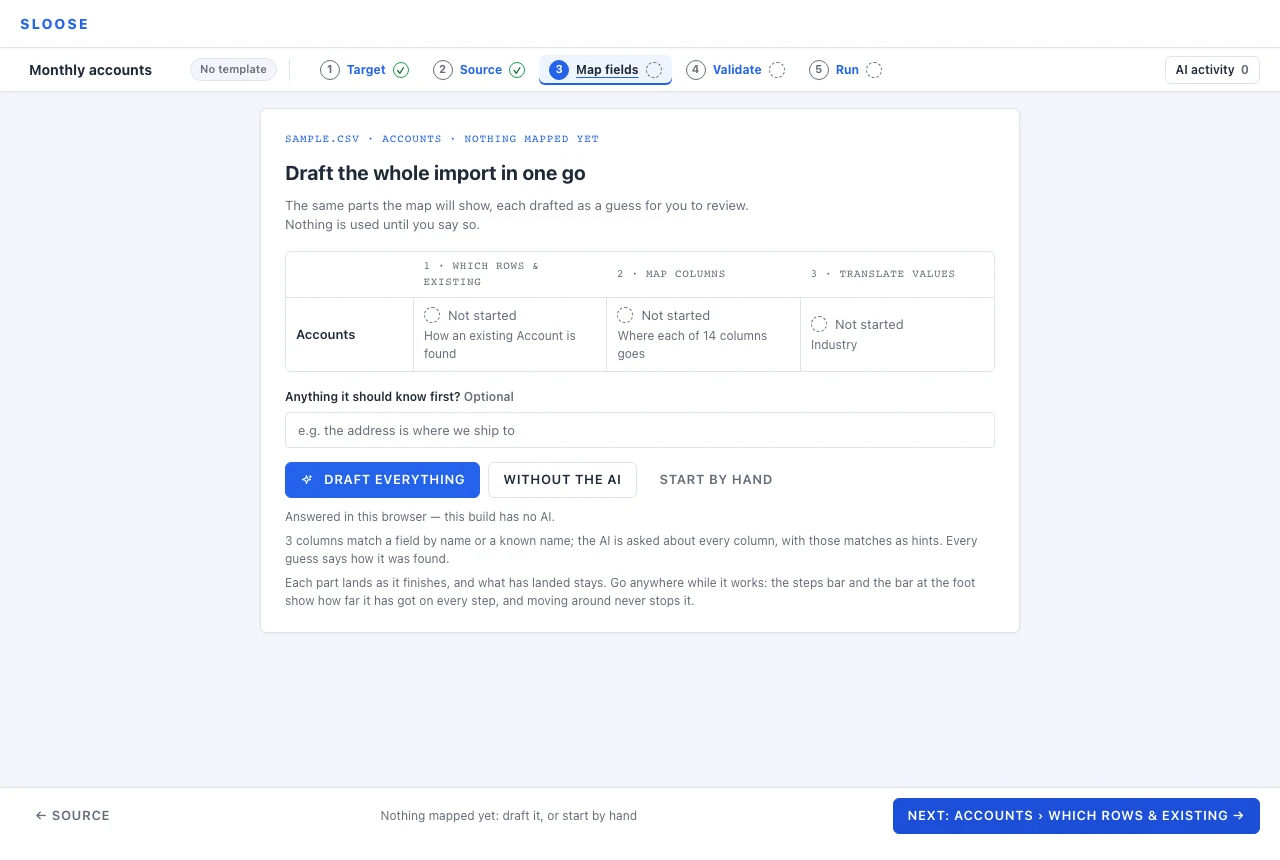
On an import with nothing decided yet, Map fields is one card: Draft the whole import in one go. It is the map of the work with every part not started — save one already decided, such as a module set to all new, which reads set, not opened yet — the parts the draft drafts, and no others — with what each would draft under it; it takes an optional note (the address is where we ship to), and offers three ways to start. Draft everything matches the columns by name first, for free, and then asks the AI part by part — about every column, with what the names found as hints it confirms or improves (an expression where the values need a different case, a split or a join to fit the field), and about the values of every picklist a guess maps, in the same pass; Without the AI stops after the free check; Start by hand guesses nothing — and so does the footer’s Next, which goes to the first part. Each part lands as it finishes, and nothing is used until you accept it.
A draft goes on wherever you are. The steps bar’s Map fields shows how far it has come — 3 of 5 beside a spinner, each part listed when you point at it or focus it — and so does the foot of every step, with Stop. A part that lands, or that the AI could not draft, while you are elsewhere says so, with Go there. Moving between steps or files stops nothing; editing a file’s rows while its parts are asked drops only the answer about the old rows and asks that file’s parts again — those not yet landed — and the Source step says so above the rows it is drafting from, the values of a module among them. A file added while it runs joins it: matched by name for free, its parts drafted after the others, and counted, so 3 of 5 can become 3 of 7. A file removed takes its parts with it, the landed ones too. A file is drafted as the modules its rows are records of. Before a file’s columns, the draft asks which of the import’s modules the file’s rows are — told the import’s other files by name and column headers (up to ten), so a file of companies is no Contacts, and a file of people whose company column names a company the companies file makes links to it rather than making the company again. A module the file does not feed is not drafted for it: under the map, Contacts from companies.csv wasn’t drafted, with why, and Draft it anyway, which drafts that file for that module all the same. A part the draft could not do needs you, and its cell says why for as long as that is true; a part it stopped before for want of credits says, beside whatever else it says, that it waits on them. Under the Never AI data setting, Translate values says the AI is not asked about values there; under Masked it is asked about a picklist’s or a multi-select’s own column, and says why it is not asked about a lookup’s values or a formula’s. Whatever the AI is not asked about — those, and a field excluded from AI under any setting — is offered the closest options instead, and the values nothing settles there need you, whether or not the part has been opened.
After that, the page is a map of the work: a row per module and three parts — Which rows & existing (might some of these rows already exist, and how would one be recognised?), Map columns (where does each column go?) and Translate values (see Value maps). Each cell says where its part stands — a guess waiting, what needs you, what was decided, or Not started — and takes you there. The footer’s Next goes to the next part that is not done, and the map’s Discard the rest drops every guess still waiting, for the whole import.
When the import has more than one file, the map has a row per module and file, and the row of files says which one you are answering for — the columns on offer are that file’s, and so are the card and the mapping you write. A module fed by two files is two answers, one per file, and both of them import: an accounts file loading fresh records can be All new while the contacts file beside it recognises existing records by a reference. Switching files changes nothing about the other one.
Rows of a subform…, under the map, makes a file the rows of a subform (the line items of a deal, say) instead of records of its own, and where a file looks like that the page offers it. See Rows inside a record.
Which rows & existing
Section titled “Which rows & existing”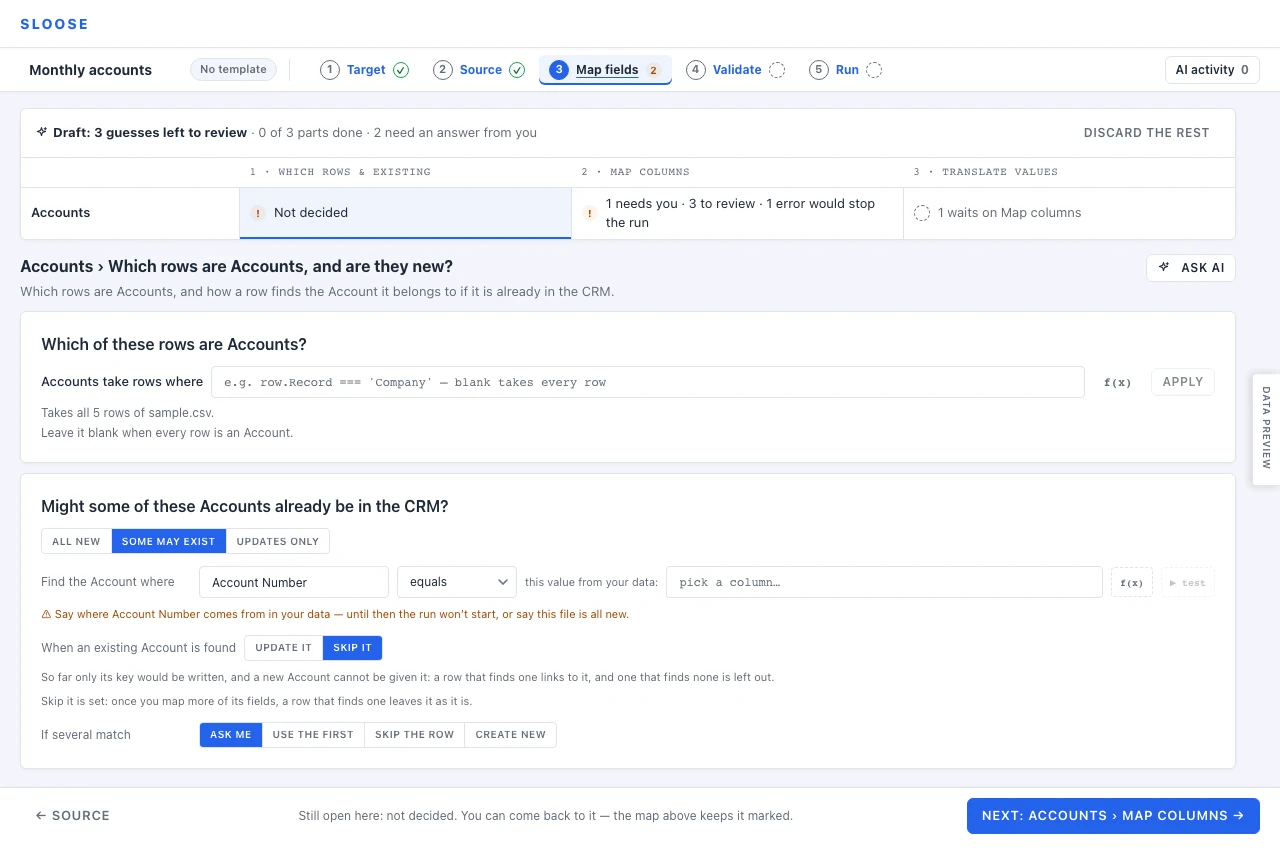
Each module’s first part is one card with two questions — Which rows are Accounts, and are they new? — and the step opens on it until they are answered. Answered, the part’s cell on the map says what was decided — by Account Number, from “Account No” — and is the way back to change it.
It comes before the columns because it shapes them: the field a record is recognised by is the first row in the list, marked KEY, and mapping that row is the rule.
Which of these rows are Accounts?
Section titled “Which of these rows are Accounts?”Accounts take rows where — an expression deciding whether a row
touches this module at all; blank takes every row. A file that mixes companies and people is the
usual case: row.Record === 'Company' for Accounts, row.Record === 'Person' for Contacts. What
you type is a draft until Apply, and under the box the card says what the rule in force takes —
Takes 5 of 12 rows of people.csv. A rule can read records written earlier in the same row, so
“only create the contact if the account was created” is expressible; it cannot read records written
later, and validation says so rather than letting it be quietly empty.
Where AI is configured, the part’s Ask AI can write it: ask which rows are Accounts, or for only the rows with a particular value — only the rows whose Account Number is 10231 — and the rule arrives in the box as a guess, with what it would take, to Use this or turn down. The model sees only some of the file’s rows, so a guess that would take none of them says so and has Use this turned off: change it in the box, or turn it down. Use all leaves it waiting too.
Might some of these Accounts already be in the CRM?
Section titled “Might some of these Accounts already be in the CRM?”| Choice | What happens | Use it when |
|---|---|---|
| All new | No matching. Every row creates. | A first load, or a file you know contains nothing that exists yet. |
| Some may exist | Rows that find their record are handled your way; the rest create. | The usual case for a recurring file. |
| Updates only | Rows that find their record are updated. Anything unmatched is left out. | Correcting or enriching records that already exist. |
All new has nothing to fill in, and a warning you should read rather than dismiss: import this file once. Running it again creates a second copy of everything. If the module has a unique field, the second run will also error on every row where the record already exists — which is unpleasant, but at least it is loud. If you might run the file more than once, you want Some may exist instead.
Updates only leaves out everything that does not find a record — that is the point of the mode, but it means a bad rule looks like “nothing happened” rather than an error. The dry run is how you find out before it matters.
The key
Section titled “The key”For the two modes that look records up, the card asks which field recognises one and where its value comes from:
Find the Account where [field] [equals] [this value from your data]
- The field — a field on the destination module. Choose one that identifies exactly one record: an account number, an email address, an external id. Where an administrator has given the module a default rule, the card starts from it.
- The method — how it compares. Only methods your CRM’s search actually supports are offered;
one it does not support is rejected at validation rather than failing on every row. Equals
means the same value, ignoring case (except on an external id, which is matched in its own letter case) and the spaces around it: a row for Acme matches ACME
but not Acme Holdings. A Latin or Greek letter with its accent stored as part of it (Vietnamese included), and Cyrillic ё and
ї, is the same letter without it (Café is Cafe); an accent a file writes as a separate character (some Mac
exports do) is not, nor is a mark on any other letter (й, kana and đ stay distinct), and ß is not ss. A number, a date or a yes/no field is compared the way your CRM
compares it. A value the CRM’s query will not take — a control character, more than 255
characters, not the shape the field holds — fails its row with the reason, and never reads as
“no record”: nothing is created for it.
Starts with is a plain prefix, ignoring case: Acm finds Acme Holdings Pty, and Holdings
does not. A value that holds a percent sign is asked up to it and kept to the whole prefix. It
can find several records, which If several match decides; Use the first takes the lowest id.
A record this import made earlier in the same run is found by the same rule. A record found by
a prefix keeps its own value in that
field. The row’s value is not written back over it, whatever else the row updates, and it is
not set after the save either. Three things follow. A formula of the row reads the value the
record keeps (
rec.Account.Account_Nameis Acme Holdings Pty, in that module and in the ones after it). The update guard’snextdoes not hold that field. And a lookup that links to the record by that field’s value with Equals — from another module of the file, or another file — has to give the value the record holds: the record is not known by the row’s shorter value, so an Equals search for Acme finds none. (A lookup set to Starts with asks by the same prefix.) Under Equals the value written is the value matched, as before. A field the CRM cannot filter — a multi-select, the large description, an encrypted, file or image field — is not offered to match or look up by, and a rule on one is refused before the run. - The value — usually a column, or a formula when the value needs work first: a lower-cased
email, a reference with its prefix stripped. Any expression works,
and the
f(x)button opens the formula editor.
Once both are there, the card says the rule in a sentence — A row is matched to an existing Account by Account Number, from “Account No”. One that finds it leaves it as it is; one that finds none creates a new Account. The field you choose is pinned to the top of the field list on Map columns with a KEY badge. What lands in that field is what the rule compares, which is why the card and the row are two doors to one decision: change the key here and the badge moves; map the KEY row and the rule reads it. A row that could be the key offers the same door from below when you open it: Use this to recognise existing Accounts.
Matched on the key alone. When the key is all a file maps for a module — a contacts file that
names each contact’s company and nothing else about it — a row that finds its record links to it
and writes nothing into it. A lookup mapped beside the key is written like any other field: a row that finds its record updates it with the link, and one that finds none makes one with the key and the link. So is a formula over another record of the row (rec.Account.id on a Contact): where the Account is saved first it is worked out before the Contact is written and goes with it, and where the Contact is saved first it is filled in after the Account is saved, with a second write. A formula over the record’s own id is different: it is filled after the save, and the record is still made from its key alone. What a row that finds none does follows the choice above. Under Some
may exist it makes one holding only that key, so a new company becomes an Account with just its
name and the contact links to it: One that finds it links to it; one that finds none creates a new
Account holding only its Account Name. Under Updates only it makes none, and the row’s other
records import without the link — and so does a key no new record can be given: a field the CRM
fills itself or your organisation excludes, or a formula that reads rec.*. A guessed rule that would leave a module like this takes
Updates only when another file of the import makes the same records with more of them, or when
the record would lack a field the import requires. Validate says the same
about a rule you set yourself.
What it was checked against
Section titled “What it was checked against”Under the rule, Sloose says what it actually produces across the file — Checked on this file: 9 values, all different, none blank. — with some of the real values beside it.
This is the most useful line on the card. A rule with 400 distinct values across 400 rows is identifying records. A rule with 12 distinct values, or 200 blanks, is not — and you find that out here rather than at row 217 of the run.
Test it against the CRM
Section titled “Test it against the CRM”▶︎ test beside the value opens Test match, which runs your rule against the real destination — one search for each distinct value, up to the first 300, over every row or the first few or a range of them — and shows what comes back: found, not found, or several. It tells you the rule works before you commit to it.
A guess
Section titled “A guess”Draft everything asks the AI, which reads the columns and a few sample values, looks for what identifies a record — unique fields, external ids, emails, distinct text — and proposes the rule. So does the part’s own Ask AI where AI is configured: a conversation about the whole part — which rows, how they are found, and when a record a row finds is updated — that proposes or revises any of them as its answer. A rule arrives on the card as a guess: tagged with how sure it is and how it was found, the rule in a sentence and in its own controls — the field, how it compares, the value — and what it was checked against on this file. Change any of those and it is yours as changed. Use this takes it, No thanks declines it, and Not quite… opens the same conversation about the rule alone, to say what is wrong with it. The bar at the top counts what is waiting on the screen — the rule and a Which rows guess, 2 things to review on this screen, and an …update only when guess with them when one waits — with Use all. Nothing is applied until you use it, or change it.
Deciding what counts as the same record is a judgement about your data, and it is the decision with the worst failure mode. Review the rule yourself, every time — the check line and the test panel are there for exactly that.
When an existing record is found
Section titled “When an existing record is found”The rest of the decision is on the same card, beside the rule it is about:
-
When an existing Account is found — in Some may exist, Update it or Skip it. Either way a row that finds none creates a new record. In Updates only, a row that finds one always updates it. While only the key is mapped, a row that finds one links to it and writes nothing into it, except a field filled after the save, which Update it sets (replacing what is there; a link to a record saved later fills only where empty) and Skip it does not; the choice is for what the columns you map next will write, and the card says so until then.
-
…update only when — beside Update it: a guard on the update, an expression that must be true for it to go ahead. This is how you say “only overwrite when the incoming value is actually better” — do not replace a phone number the CRM already holds, do not downgrade a status. (A blank in the file never clears a field: a blank sends nothing, so the record keeps what it had.) The guard sees
old(the record as your CRM holds it) andnext(what this row would write — without the key’s field after a Starts with match, since that is not written), and when it is false the record is skipped, so comparisons between them are the normal case, and like Which rows it is a draft until Apply:next.Phone && next.Phone !== old.PhoneWhere AI is configured, the part’s Ask AI can write it. While the card looks existing records up it offers When should an existing Account be updated? — answered from the file: a column saying when each row last changed is the usual reason to update only when the file is newer, and without one, updating every time is fine — or Why only then? once a rule is in force; or ask in your own words, only update when the file’s modified date is newer than the record’s. The rule arrives in the box as a guess, to Use this or No thanks. On a card set to Skip it the guess brings Update it with it: the card shows Update it chosen and says it is the guess’s, Use this sets both, and No thanks leaves the card as it was. Choosing Skip it or All new yourself while the guess waits turns it down, as No thanks would, since a found record would no longer be updated; Some may exist and Updates only keep it. On an All new card, ask for both at once — some of these may already exist; update them only when the file’s date is newer — and the answer can offer a rule for finding existing records, which sets Some may exist, beside the update rule, and both land. The update rule needs that rule, so putting it in force — Use this, or applying it changed — uses the rule too, as the line under it says, and No thanks on the rule takes the update rule with it. Pressing All new there, although the card already shows it, turns both down. On any card, choosing All new turns down a rule for finding existing records that is waiting, since the card then looks nothing up. An update rule offered alone there has no existing record to update, and the answer says to choose Some may exist. A rule that reads
oldornextcan only be decided as the import runs, so the guess says when it is decided rather than what it would do.f(x)opens the formula editor, which has an ask of its own about the rule in it. -
If several match — a rule that finds more than one record for a row is ambiguous, and Sloose will not guess on its own: Ask me, Use the first, Skip the row or Create new, for this module and this file. Skip the row leaves the row out for this module only: nothing is written to it for that row, and the row’s other modules still run. Use the first is a trap on a rule you have not verified — “first” is the matching record with the lowest id, the oldest in the CRM, which is not necessarily the one you mean — and if several match often, the honest answer is that the rule needs to be narrower. A dry run cannot ask: it goes on with the first, and its row says the real run would ask, in the Run step and in the Error column of the file Download results gives you.
Run states all of it for each module, with a Change that brings you back here; it does not ask any of it again.
The two mistakes that cost the most
Section titled “The two mistakes that cost the most”Matching on something that is not unique. Company name looks fine on a sample of ten and falls apart on the real file, where two branches share a name and every row after that updates the wrong record. Match on something that identifies one record. If no such field exists, the honest answer is often that this file is a create, not an update, and the deduplication belongs in the CRM afterwards.
Matching on a value that nothing writes. A record this run creates is built from your
mappings alone — the rule is how rows find records, not how they fill them. If you recognised
Accounts by Account Number and nothing wrote it, every account this run created would be missing
the one value the next run looks for: run the same file again and it matches nothing and creates
the lot a second time. Nothing errors; you simply have two of everything.
That is why the rule’s value is the KEY row’s mapping: what you pick as this value from your data is what the field is written from as well as what a row is found by, so the loop closes on its own. It can still come apart — a module’s default rule on a field nothing maps, or an import saved before the two were one, which the card points out (Compared on …, which is not what Account Number is written from) until you edit the value. When the field the rule searches is written by nothing, or from other columns than the rule reads, the run logs a warning and does not refuse, since the value can legitimately arrive another way. But if it does not, this is the warning to act on. Two cases are deliberately quiet, because there is nothing to close: All new (nothing is matched at all) and Updates only (nothing is created).
The field list
Section titled “The field list”Each destination field gets its value from one of five places.
| Mode | Takes | Use it for |
|---|---|---|
| Column | A column from your file, as-is. | Most fields. |
| Static | A fixed value, the same on every row. | A lead source, a status, a campaign name. |
| Formula | An expression. | Combining columns, cleaning values, conditionals. |
| Search | A live lookup against another module — called Link when the import has more than one file. Offered on lookup fields. | Pointing at a record by a value rather than an id. |
| Skip | Nothing. | Deliberately leaving a field alone. |
Four rows of every module that takes notes are not fields of the record at all: Note title, Note content, Note date and Note author become a note on the record, added after it is saved. They are mapped like any field, and the row says what they are. See Notes on records. A field that takes files, and every module’s Attachments, name their files from a files sheet: see Files on records.
Skip is worth using on purpose. A field explicitly skipped reads differently from a field nobody got to, both to you next month and to whoever loads the template after you.
Three ways to start
Section titled “Three ways to start”An import nobody has started opens on the draft card (above), which takes none of the routes on your behalf: Draft everything, Without the AI or Start by hand. Once it has started, the list keeps two of them for a module — Guess without the AI in its toolbar, free, instant and never leaving your browser, and Suggest columns for the N unmapped fields in the part’s Ask AI, which reads a few sample rows and proposes — and they combine: the free check first, then the AI about every column, with what the free check found as hints it confirms or improves. Where the AI answers a field, its guess replaces the free check’s, and says by AI and by name when the two agree.
Guess without the AI
Section titled “Guess without the AI”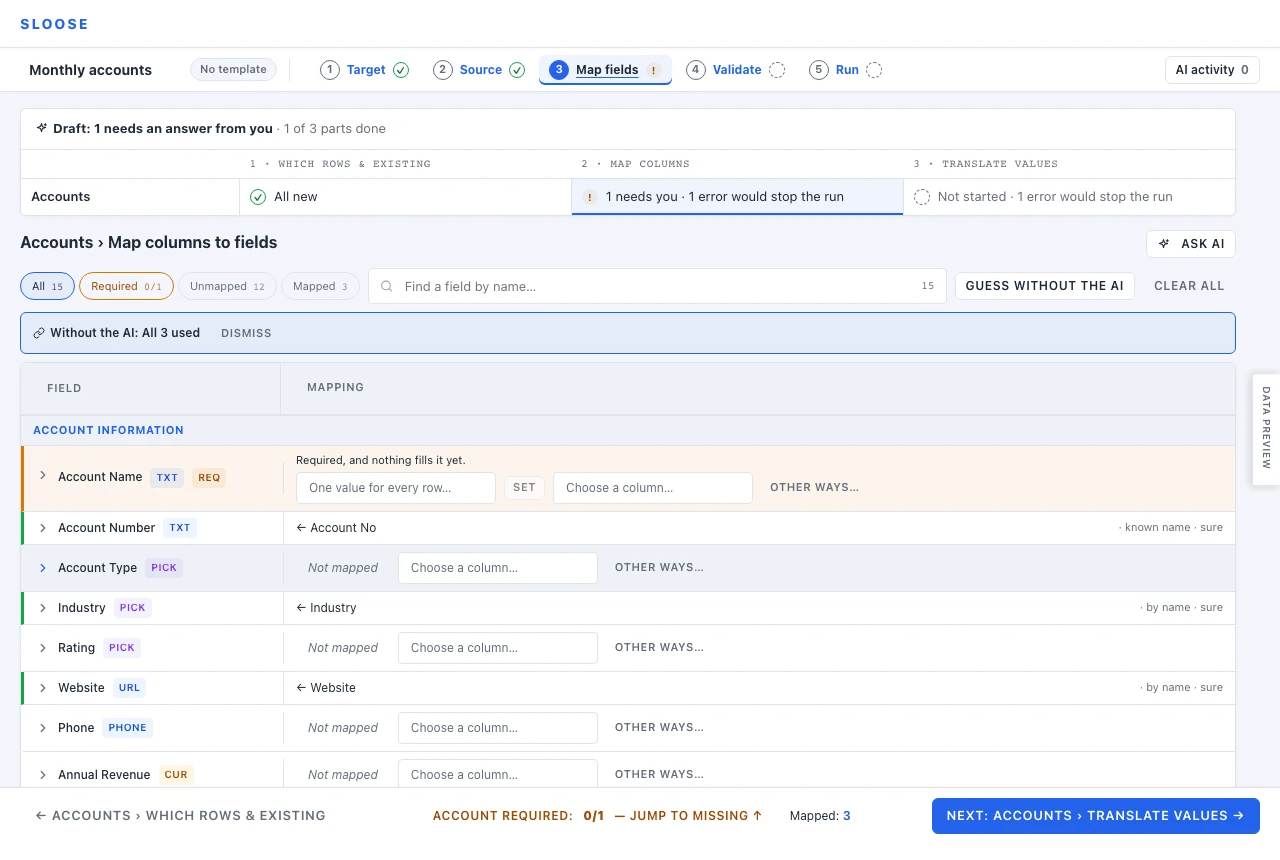
Free, instant, and nothing leaves your browser. It makes the first pass and stops, and it is deliberately conservative — a wrong mapping that looks right costs more than an obvious gap — so expect it to leave work for you. Nothing it finds is applied: each is a guess on its row, and the bar over the list says how many — Without the AI: 4 guesses: 3 sure, 1 to check.
Every guess says how it was found, which is the part worth reading, and a mapping used from one goes on saying it, shorter, for the life of the import (known name · sure, by spelling · likely):
| How it was found | Means |
|---|---|
| by name: the column is called “Staff”, a name your organisation has taught | An administrator recorded that your files use that name for this field. This is knowledge, not a guess. |
| by name: the column is called “Account Name” | The column and the field are called the same thing — or nearly: spelt differently, or without the module’s own name in front. Usually right, occasionally not. |
| by its values: what “Contact” holds looks like Email | The column’s values fit the field — a picklist’s options, or the form of an email, a website, a phone number or a date — and nothing else fits either. |
| by AI | A model proposed it, with a confidence and a reason — see below. |
A mapping the field’s default mapping fills says field default on its row: it is the field’s configuration, not a guess.
A guess for the module’s KEY field is never taken with the others by the bar’s bulk button, however sure it is — because a wrong value in a matching key is not recoverable by re-running.
It also tells you when a column it guesses is blank in every row — the mapping would be valid; it just writes nothing — or repeats a value on a field that must be unique.
A lookup is guessed by what its column holds. When nine in ten or more of its values (blank cells aside) look like record ids, it is mapped as it is, and the odd value that is not an id links only through Translate values. With fewer, the column would link nothing as it is — but a value that is not an id is not necessarily a record’s name, so it is guessed as a search only where something says which field to search:
- its header names a field the module can be searched by, by the field’s label or its API name, with letter case, spaces and punctuation ignored: a column called Account Number searches Account Number; or
- its values name records of that module — half of them, or three, whichever is fewer — and the search is by the field the CRM names those records by. Sloose asks the CRM when a guess needs it, and not before: one read of up to 200 of the module’s records, and when that is every record, the values are matched against them; when the module has more, the column’s first 20 different values are each looked up in the whole module, as the import would look them up. Until the answer comes back the column is guessed as it is, and a guess you have not yet taken or turned down is then worked out again; or
- its values are email addresses or phone numbers — nine in ten or more of them — and the module has exactly one field of that kind: a column of addresses searches a Contact’s Email. A module with two such fields, a Contact’s Phone and Mobile, gets no guess, since the form cannot say which a number is, and a number that is digits alone is not taken for a phone.
With none of these, the column is guessed as it is, and the guess says it links only through Translate values or by search. Only the rows the module takes are counted: rows its Which rows rule holds back are left out, unless the rule reads records and so can only be decided as the import runs.
A search by the field that names the records says what its values come to in that module: 3 of 15
values name a record in Vendors; 12 would find none. When the module has more records than one read
brings and the column more than 20 different values, it says it of the 20 it looked up: Of 20
values sampled, 5 name a record in Vendors; 15 would find none. It compares names as the CRM’s
search does: letter case and any spaces before or after a name are ignored, and everything else has
to match exactly. So a value spelt a little differently — Smith Pty. Ltd. for Smith Pty Ltd —
would find none, and the guess says when one is close enough for
Translate values to map it as a column. A column whose name, written in a
formula, is another header’s too — Campaign Source and Campaign-Source are both
row.Campaign_Source — is guessed as it is, since a search made from it could read the other
column; the guess says so, and renaming one of them, or writing the search yourself, settles it.
Asking the AI
Section titled “Asking the AI”Where AI is configured, Ask AI at the top right of the columns is one conversation about them. Its Suggest columns for the N unmapped fields asks for the whole file’s mappings in one call — every module’s, so the answer says what it put in each — and anything you type is a question about this module’s columns: which column is the trading name?, what should fill Billing Street? What an answer proposes lands on the rows as guesses. Not quite… on a guessed row is the same conversation, narrower: about that field and the column filling it. A question about a field you have already mapped — leave out the account numbers that are not valid — is answered on its row too: the guess says what it would replace (instead of ← Account No), and your mapping stays as it is until you use the guess.
The AI goes further than name matching, using sample values to break ties, and it is told the module’s key as the card has it: the KEY field is already mapped, so it leaves that field alone, and its column too unless the column holds more than the key (a whole name keyed on its surname still gives the first name). Two things hold about it:
- Every proposal is validated against your organisation’s real fields before you see it. The model cannot invent a field. One that fails validation is downgraded or dropped rather than shown.
- It proposes; you accept. Nothing is saved on the model’s say-so.
A lookup is held to the same rule as Guess without the AI, with one difference. A column of record ids is mapped as it is, and so is a search the AI proposed whose values turn out to be ids — or, when the search worked its value out with a formula that makes ids, that formula. A column of anything else that the AI proposed as a column comes back as a search only when its header names a field the module can be searched by, or its values are email addresses or phone numbers and the module has one field of that kind, and the row says it was changed. The difference: the check of an AI’s answer never reads your CRM’s records, so it cannot ask whether the values name them. A column with neither stays the column the AI proposed, and the row says it links only through Translate values or by search. A search the AI proposed by a field the module can be searched by stands — the AI read the values. A search by a field the module cannot be searched by is put on the field the header names, or the one its values are by their form, or the one that names the records, or dropped. No search reads a column whose name another header shares in a formula. The AI never says what a lookup does when it finds none or several: that is yours, under each search.
A question here can be answered with how an existing record is recognised, which rows the module takes, or when an existing record is updated. That offer appears in the module’s card on Which rows & existing, not in the list, because that is where the decision is made — and the conversation says it put it there.
Every question asked about the import — here, on Source, in a formula editor, and the parts Draft everything drafted — is listed under AI activity, the first button on the import’s own bar, newest first, with what became of what it proposed and Go there. From there, Undo turns down an answer you have used none of, and Turn down the rest what still waits of one you have partly used, as No thanks on each would. See AI activity.
See Your data and the model for what gets sent.
Guesses are rows
Section titled “Guesses are rows”A guess — the AI’s, or the free check’s — is a row in the list marked GUESS, saying how sure it
is and how it was found (Guess · sure · by name: the column is called “Industry”), with what it
proposes, why, the real values it would produce, and anything the file says against it: a column
blank in every row, a repeated value on a unique field. Four things to do with it:
| Use | Apply it as proposed. |
| Modify | Take it and open the editor on it — accepting by editing. |
| No thanks | Decline it. Neither Guess without the AI nor Suggest columns proposes it again for this file; a question you ask still can. On a guess over a mapping it is Keep and the mapping, Keep ← Account No. |
| Not quite… | Say what is wrong with it, in words, and get another proposal for this row. |
While any are waiting, one bar over the list says how many — 4 guesses: 3 sure, 1 to check — with Use the 3 sure guesses (Use all 4 when every one is sure) and the line that governs all of it: Nothing changed until you pressed a button after the AI, Nothing is used until you say so after the free check. Sure is what the row says: the field’s own name or one your organisation taught it, or the model’s own high confidence — a required or unique field included, and a picklist whatever its values: the ones that are not among its options are Translate values’ work, and the row says how many wait there. Four kinds are never taken that way, whatever their score: a guess for the KEY field, a lookup or a search, a formula, and a guess that would replace a mapping already on the field. Those wait for you one at a time, because a wrong value in the field the whole import matches on updates the wrong records. To drop every guess still waiting, use Discard the rest on the map of the work, which does it for the whole import. The Proposed filter chip narrows the list to what is waiting.
Remembered when you accept
Section titled “Remembered when you accept”Accepting is the signal. When an administrator accepts a proposal that maps a plain column the field does not already answer to by name, Sloose records the column name as an alias for that field of the connection, for everybody in the organisation, and says so:
Remembered: “Staff” means Employees for this organisation. Undo
Next month, and for everybody, the free matcher finds it — no model call — and offers it as a sure guess. It is the only write in the product where using the AI makes the AI less necessary. Undo takes the alias back. Accepting is all it asks for. There is nothing to remember for a formula, a static value or a column the field already answers to by name. A column it reached only by a different spelling (Acct No for Account Number) is remembered: the matcher guesses that, and a run on its own never guesses. Some columns are used for this file and not remembered:
- one that is another field’s own name, or a name another field answers to — a field’s aliases win over every other field’s name, so remembering Phone on Mobile would send every later file’s Phone column to Mobile;
- one the import reads into two fields at once;
- a heading with no letters or digits, such as # — the matcher can match no name with no words, so an alias of one would do nothing;
- a heading told apart only by a symbol the matcher doesn’t read, such as Amount € — remembered, it would answer to Amount $ and Amount too.
Only an administrator can add an alias, so for everybody else the proposal is accepted and nothing is recorded. An accept made before Sloose has checked who may waits for that answer; if Sloose can’t check, or you leave the import first, a message says which names weren’t remembered, and accepting them again remembers them. Remembering adds that one name to the field and changes nothing else about it, so two administrators accepting at the same moment are both remembered, and a name the field already has is not added twice. If the name cannot be saved, the toast says so; the mapping stays accepted either way.
Reading the grid
Section titled “Reading the grid”The key field comes first, required fields next, then the rest by name — or, where the module’s fields come in sections, section by section, with what no section places under Other fields. Each row carries its type and any flags:
- The type badge —
TXT,PICK,DATE,LOOKUPand so on — which decides what the field will accept and whether it needs a value map. KEY— how a row finds an existing record. What lands in this field is what the card’s rule compares.REQ— required for imports. While nothing fills it the row asks for a value there and then — one value for every row, a column, or Other ways… — and Validate will not let the run start until something does. Two cases are let through: a module that only updates existing records (Updates only) makes none, so needs none; and a field your administrator marked Required, but an import may leave it empty.UPPER CASE,LOWER CASEorTITLE CASE— how the field’s setup says it is written: each value is changed to it on the way in, and a match on the field looks for it so.GUESS— waiting for you. Nothing is written until you use it.
A mapping taken from a guess keeps saying how it was found beside it — known name · sure — and one you set yourself says nothing. A guess on a field that is already mapped is the row worth reading twice: something is mapped, and something else is being suggested in its place — the row says what it would replace (instead of ← Account No).
The filter chips across the top narrow to Required, Unmapped, Mapped or — while anything is waiting — Proposed, and the search box finds a field by name. On a module with 200 fields, Unmapped is the view you want.
Where your columns go
Section titled “Where your columns go”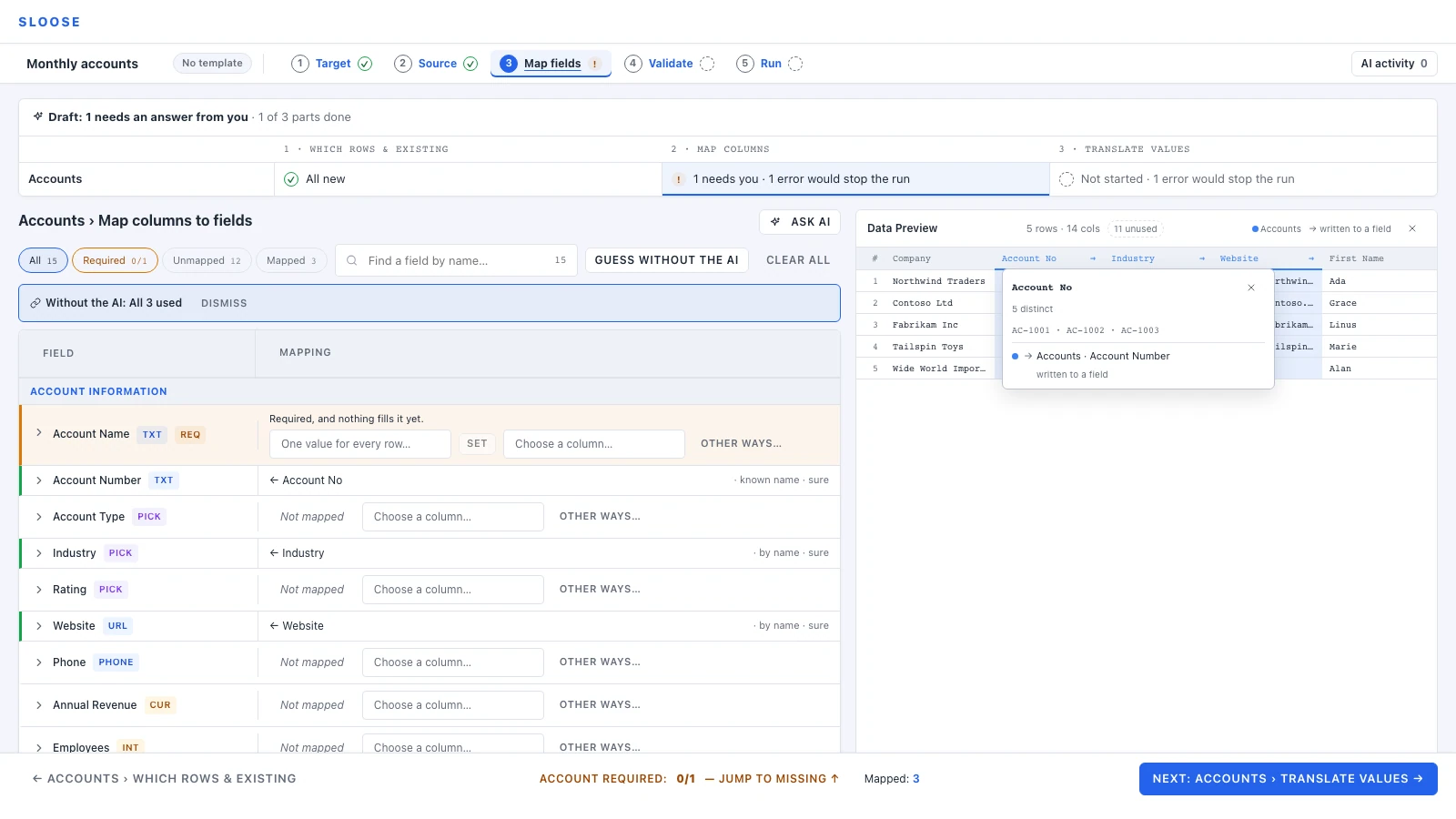
The grid is field-first — every field in the module, whether or not anything fills it. The Data Preview on the right — beside the list on a wide window, or behind the Data Preview tab at the right edge on a narrow one or once you collapse it — is the other direction: your file, with each column marked by what the import does with it.
The colour is the module. A column several modules read gets a band of each of their colours rather than one neutral one, so “who uses this” survives being shared.
The mark under the name says how far it gets:
- A solid underline: the column reaches your CRM.
- A dashed underline: it only decides something — it is read, but never written.
The glyphs beside the name say which job, and a column can do several:
| Job | |
|---|---|
→ |
Written to a field. |
ƒ |
Read by a formula. |
⌕ |
Used to find a linked record (search mode). |
⌖ |
Used by the key to identify the record. |
≋ |
Used by a gate or an update guard, deciding which rows import. |
This is why a column feeding only a formula still counts as used: helpers.num(row["Annual Revenue"]) consumes that column as surely as a direct mapping does.
Click a column heading for everything about it in one card: how many distinct values it holds, how many are blank, and every job it does — with the field it lands in, and whether that field’s values are translated in Translate values, the last stage of Map fields.
Columns nothing reads
Section titled “Columns nothing reads”They are listed under the field list — Columns not used (5): … — with the AI’s reason beside
any it said to leave out. The Data Preview counts them too, N unused: click it to show only
those columns, and click again for the whole file.
Unused is not an error. Files arrive from wherever they arrive from, usually carrying far more than this import needs, and there is nothing to tidy up — Sloose ignores a column nobody mapped. The list is there so that forgetting one looks different from not needing it.
Fields you will not see
Section titled “Fields you will not see”Two kinds are hidden:
- Fields the CRM fills itself — generated and read-only fields: record ids, autonumbers, the created and modified stamps. (One may still be the field an existing record is recognised by.)
- Fields your administrator excluded — system fields nobody should map, set per module or organisation-wide. See Curating modules.
If a field you expect is missing, it is one of those, or discovery has not run since it was added.
One column, several fields
Section titled “One column, several fields”Nothing stops you mapping the same column into several fields — a name column feeding both a display name and a search key is ordinary.
The other direction, several columns into one field, is a formula:
`${row["First Name"]} ${row["Last Name"]}`.trim()Search mode
Section titled “Search mode”Instead of mapping a lookup by id, search for the record at run time:
Find the Account where Account Number equals this row’s
Account No
The value is a column of your file, picked as a column map’s is, or a formula when it needs work
first: f(x) opens the formula editor on the column, and a value that is more than a column is
shown as its formula. Picking a column in place of a formula replaces it, and Undo on the
message that says so puts the formula back.
Use it when your file names the related record rather than identifying it, and when there are too many possible values to keep in a value map. Which fields a search may look in depends on the module it searches, not on what this import feeds. For any module the connection offers to imports, they are that module’s fields, all but the ones the CRM fills in itself after a save (an auto-number, a formula). For a module the connection does not offer — one left out when its modules were chosen, or one Zoho does not let an import write — the one field offered is the field the CRM names its records by, which Sloose asks the CRM for when the search is shown; when it cannot be read, or the CRM names none, the row says so with Read again beside it. The alternative — mapping the values explicitly — is in Translate values, and is the better choice when the set is small and stable.
When it is not one record
Section titled “When it is not one record”Under each search are its two answers:
- If none match — Leave it empty (the default), Skip the Contact (the row’s other records still import), or Ask me. A row with no value to search by, and one whose search formula cannot be worked out, take the same answer; the Run step says which of the three it was.
- If several match — As the run, which names the import’s own answer beside it — Ask me unless a template brought another, and where that answer is to create a new record anyway the link is left empty, since a lookup makes nothing — or its own: Ask me, Use the first, Skip the Contact or Leave it empty. A module card’s If several match is about finding that module’s own records, not about its lookups.
What a search sees of the records this import is making. However the records are sent to your CRM, a row’s search finds:
- The records made by the rows above it in its own file, and by its own row. A record that only a later row of the same file makes is not found: the link is not made, and If none match answers. For a search by equals, Validate says so before the run, with the rows; a starts with search is not read that way. Put the rows that make those records above the rows that look them up, or make them from a file of their own that looks nothing up in this one: a file that provides records runs before the file that looks them up.
- Among several of those, the row’s own, where it holds the value searched. Two rows that each make an Account called Acme, each with a Contact that finds its Account by that name, link each Contact to its own row’s Account, with nothing asked. Under starts with, a row’s own Acme North is not taken for a search of Acme when another row made Acme itself: that is several. Several the run made, none of them the row’s own, is If several match as above.
- The records other files of the import made, since those files ran first, and the records your CRM already holds, as always.
Three things this rule does not cover:
-
A record a later row updates. The rule is about records the run makes. A record your CRM held before the run, which a row of the file renames, can end linked differently depending on how the records were sent, in three ways:
- a row above the rename looks the record up by its new name: not found where records go one at a time, found where they go in batches;
- a row above the rename looks it up by its old name: found where records go one at a time, not found where they go in batches;
- a row looks up a name that a row above it made and a rename then moves a second record onto: one record where they go one at a time, two where they go in batches, so If several match answers there.
Validate lists only the rows that look up the new name, beside the rows that look up a record a later row makes, and says the link may be made or not. It cannot list the other two: it does not know what a record was called before the run. Where a file renames records that its own rows look up, rename them from a file of their own that runs first.
-
A lookup into a module saved after the module that looks (a save order set by hand, or two modules that look each other up). Validate refuses that order where the searched module makes records, and says which order serves it.
-
A row whose record failed. A Contact waits on the Account a row above it could not make, and is not written. An Account a later row could not make holds nothing back.
Ask me pauses a real run on that row and asks, offering the records to choose from when several matched; every time this run gives that lookup the same answer for the rest of the run. A dry run cannot ask: it goes on as the default would — an empty link, or the first of several — and marks the row would ask. ▶︎ test beside the search opens Test match, which says what each value would come to under the answers set.
What each lookup came to, where it was not one record — the link left empty, the first or a chosen record linked, or the record skipped — is said on its row in the Run step and in the Error column of the results file: the one Download results gives you, and the one Settings → History & retention makes for a run that wrote. A dry run’s would ask is in the first of those only, since History keeps no file for a dry run. A row’s result is still what was written; these say what to look at.
Formulas
Section titled “Formulas”The f(x) button on any field opens the formula editor, which runs your expression against real
rows from your file as you type, so you see what it produces before you leave the step. A formula
its Ask AI wrote is held, unrun, until you press Run it on the rows — unless Sloose can see it
reaches nothing but the row — because it was written from your file’s rows, and a file can come
from anyone.
See Formulas, and for the full reference Expressions.